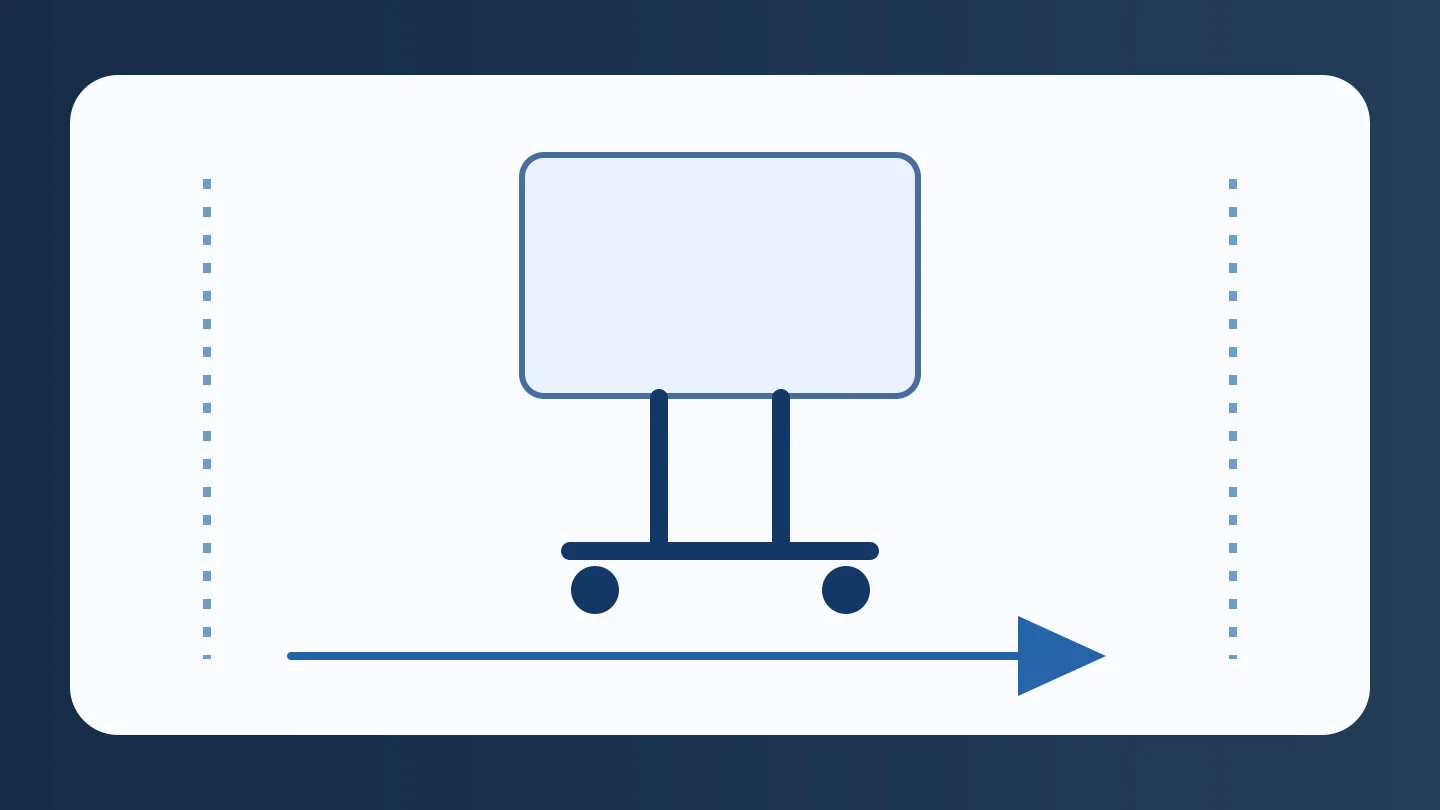
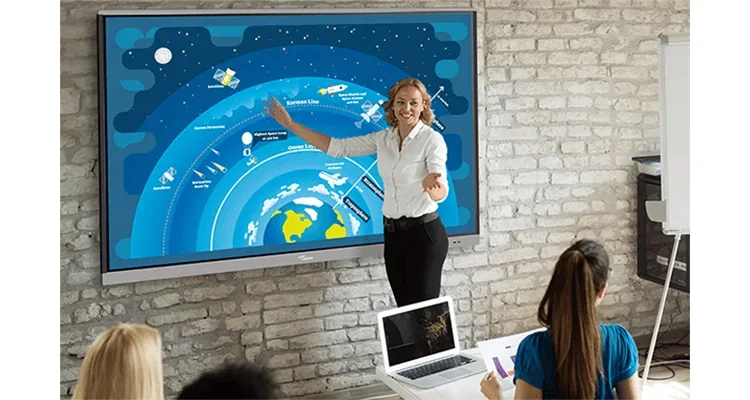
Start with the detail a viewer needs to see
A person sitting in a classroom may never need to read an operating system menu. They may need to find three numbers in a table, read captions or distinguish lines on a chart. Those details determine the useful test. Bring a typical slide, worksheet, spreadsheet or annotated exercise before ordering. Record the normal zoom level and the longest intended viewing distance. If lessons combine whole-class presentation and small-group work at the display, list the content each group must read.
Some content can be rearranged or enlarged, so panel size is not entirely determined by the available wall. Decide whether enlarging the application would remove details that need to be visible together, such as a question label and a diagram. If teaching software does not expose text size controls, include it in the demonstration. For multiple rooms, bring the content to the largest room and the room with the most difficult lighting. A single model will not necessarily provide the same readability in both.
Measure active image height and viewing distance
Displays are marketed by diagonal dimension. A 16:9 display has an image height around 48.99% of its diagonal and a width around 87.16%. The active area of a nominal 65-inch panel is approximately 144 by 81 centimetres. A 75-inch panel is approximately 166 by 93 centimetres, and an 86-inch panel around 190 by 107 centimetres. These are geometric estimates. Use the model's installation drawings for the actual frame, connection points and required clearances. When an application uses only part of the panel because of its aspect ratio or a video pane, the effective content area is smaller.
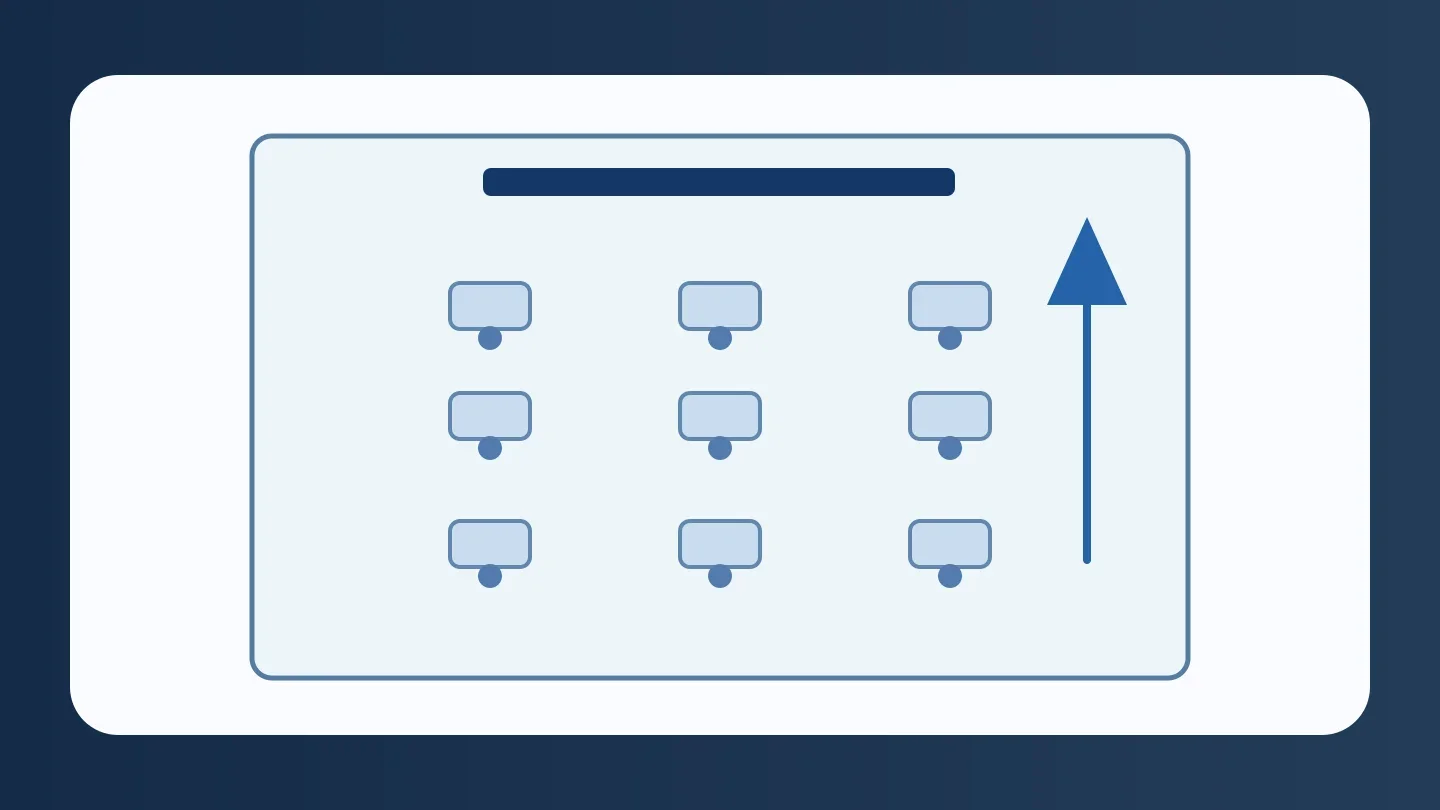
Measure from the farthest seat and any side position where people view the display at an angle. Image height relative to the reading task is more meaningful than whether an 86-inch panel fits on the wall. AVIXA's display size guidance defines the active image and distinguishes between basic decisions and close analysis of details. Pick a method aligned with the actual task, then confirm it with a familiar file.
Treat resolution and viewing distance as different factors
Resolution can preserve small visual features when the source and signal support it. Additional pixels do not make each line larger at the back of the room. When comparing models, open the same file at the same application zoom. Set computer scaling to a realistic classroom setting. If one panel shows a document enlarged and the other shows it at default size, you may end up comparing settings rather than equipment.
Give the person at the rear a specific question. Ask them to read a unit from a graph or identify the third number in a table rather than asking if the display looks bright. If the content is readable in the morning and difficult later, inspect window direction, glare and available shading. Test side seats with normal lighting switched on. Readability depends on dimensions, distance, contrast, lighting and the way content is arranged.
Confirm mounting height and usable space for touch
Choose a height that lets real users reach common controls. Test the source switch, writing toolbar, corner menu and pen storage or charging point. Include a variety of user heights and a person operating from a seated position where relevant. Use a full-size mock-up to check the active area and toolbar position before changing permanent fixing points. A person may be able to touch the panel but still struggle to drag an item from one corner to another.
Observe what viewers can see while somebody uses the touch surface. If the person's body hides the lower area, move the frequently used controls or the task area away from important content. Leave a clear path to the controls and ensure anyone who needs a cable connection can reach it. Agree a method for someone who needs to interact without approaching the screen. If a height-adjustable stand is selected, compare adjustment range, panel compatibility and cable routing with the manufacturer's specifications.
Worked comparison between 75 and 86 inches
Imagine a classroom used for weekly presentations and exercises involving data tables. Arrange a 75-inch demonstration at the proposed distance and show the teacher's normal presentation at its usual zoom. Ask the student in the last row to read a table cell and a chart legend. Repeat at 86 inches with the same file. Consider the size gain, the price and installation space, and check that a shorter student can still access essential writing controls. The larger panel may enlarge content while placing top toolbar controls outside a comfortable reach if the mount is chosen without the touch workflow.
If the room also serves remote learners, include a camera and an actual remote call. The remote participant may receive screen sharing directly from the application or video of the panel from a camera. This differs from what people sitting close to the display see. Define the content route for each teaching mode to avoid choosing a setup on the basis of local visibility alone.
Record the decision in a way that can be checked later
Retain a test file or image, the seat positions, lighting state, toolbar height and zoom used. Specify the observed result for each scenario so it can be repeated after changes to furniture, software or display. At handover, ask the teacher to lead a short exercise covering reading, writing and changing source. The touch display catalogue and education solutions page provide next steps once dimensions and representative classroom material are available.
Compare zoom with space for annotation
If material sits in one part of the screen alongside a whiteboard, measure each region separately. On a 75-inch display about 166 centimetres wide, a document allotted half the width has about 83 centimetres before margins. Something legible at full size may be harder to read when a second window is open. Ask the teacher to move between full-screen reading and a close-range writing task without losing the class's previous work.
Interactive display size FAQ
Is a bigger panel always easier to read?
It can make content larger when the layout and scaling remain comparable. Contrast, lighting and space reserved for other content affect readability too. Verify that the people using touch can still reach the controls.
What if available wall space is limited?
Map the sightlines, test adjustments to the content layout and consider a different wall or seat arrangement. If a larger panel cannot fit, a smaller difference between viewer distance and the point where the content is presented can resolve some reading problems.
Where should we measure when furniture is movable?
Measure from the farthest intended seat in each layout regularly used. If the panel serves two rooms, demonstrate the same file in both and verify both the connection and physical position.