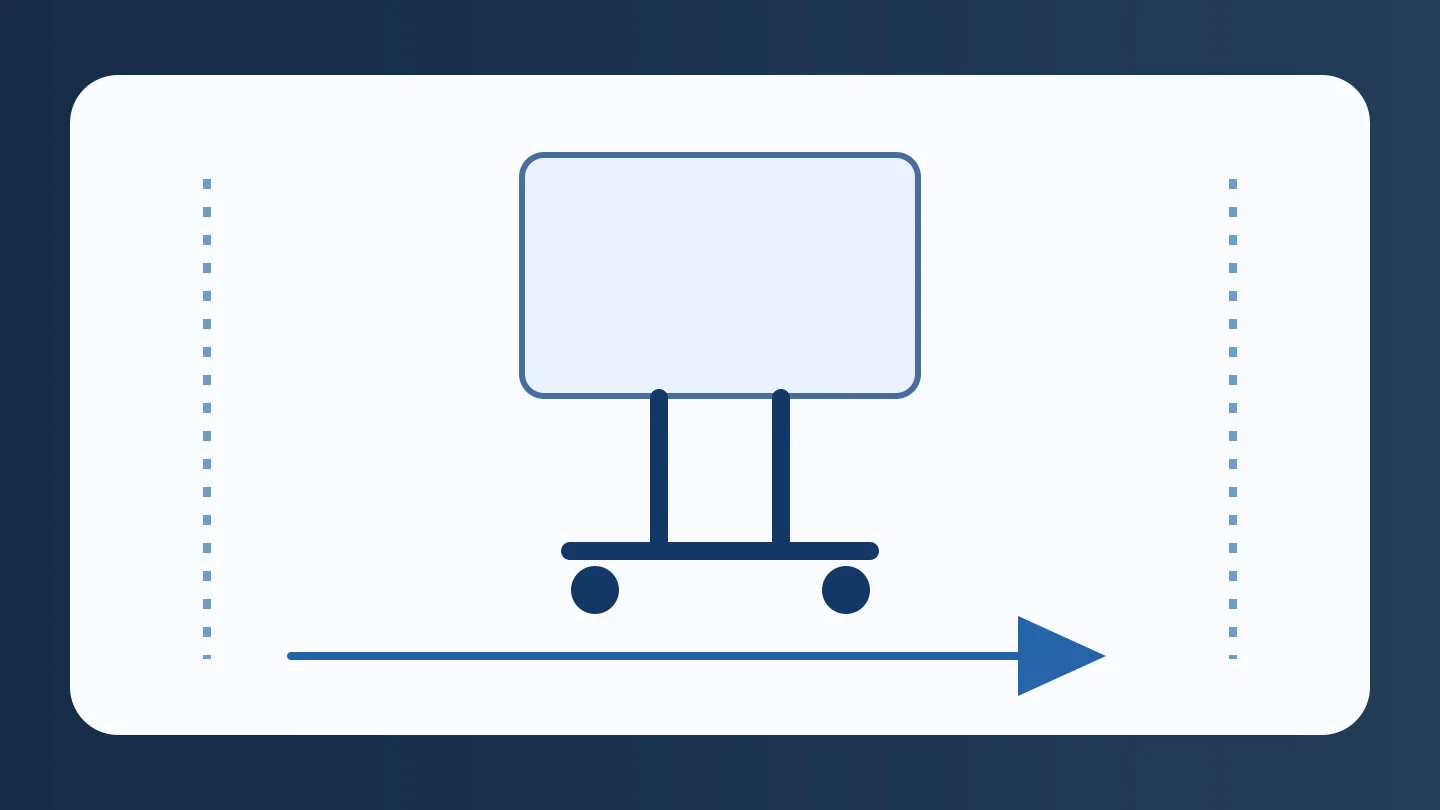
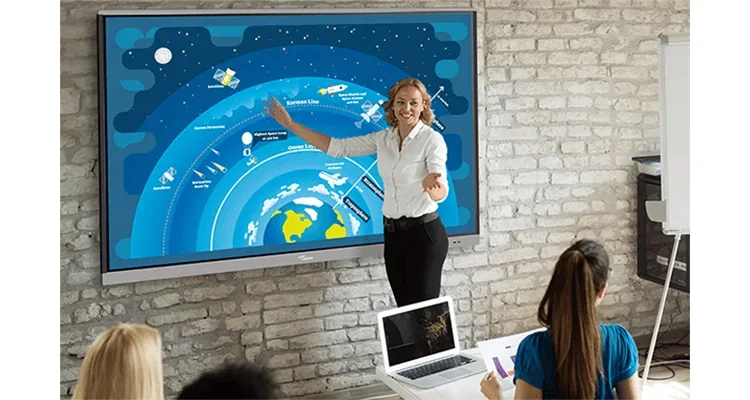
What moves through HDMI and what moves through a touch cable?
An interactive display connected through HDMI receives a picture and usually audio from the source. Seeing the desktop and a movie does not establish that the computer can read touches on the panel. Touches, taps and gestures usually reach the source through a separate USB path or a combined data link, depending on the connections available. Start by determining whether only touch is absent or whether picture and audio are affected too. A missing data path needs a different check from a loss of every signal.
On some panels, built-in menus respond even when the external computer sees no touch. Try switching source on the display interface, then open a computer app where a selection or mark is visible. When the panel menu works but the application does not, look at the relationship between video input and touch USB first. If even the panel's own interface fails to respond, check the device operating state using its manual rather than changing laptop cables immediately.
Connect HDMI and USB Touch for the same input
Find the exact video input in the installation guide. A display may number HDMI inputs and pair them with specific touch ports. The matched port can be on the front or the back of the frame. Send the source output to the specified HDMI input and connect the source computer to the corresponding USB touch port. A socket used for a storage accessory may look similar but serve a different function from the USB route that makes the panel an input device for the computer.
SMART Board GX Zero connection documentation illustrates the need to use appropriate touch and video connections. The mapping is model-specific. If staff use a front input for visitors and a rear input for a room computer, record the matching touch ports for both. Connect the pair, select the input and verify whether the intended computer responds. Switch back to the regular source and confirm points are registered by that computer again.
When can USB-C replace two cables?
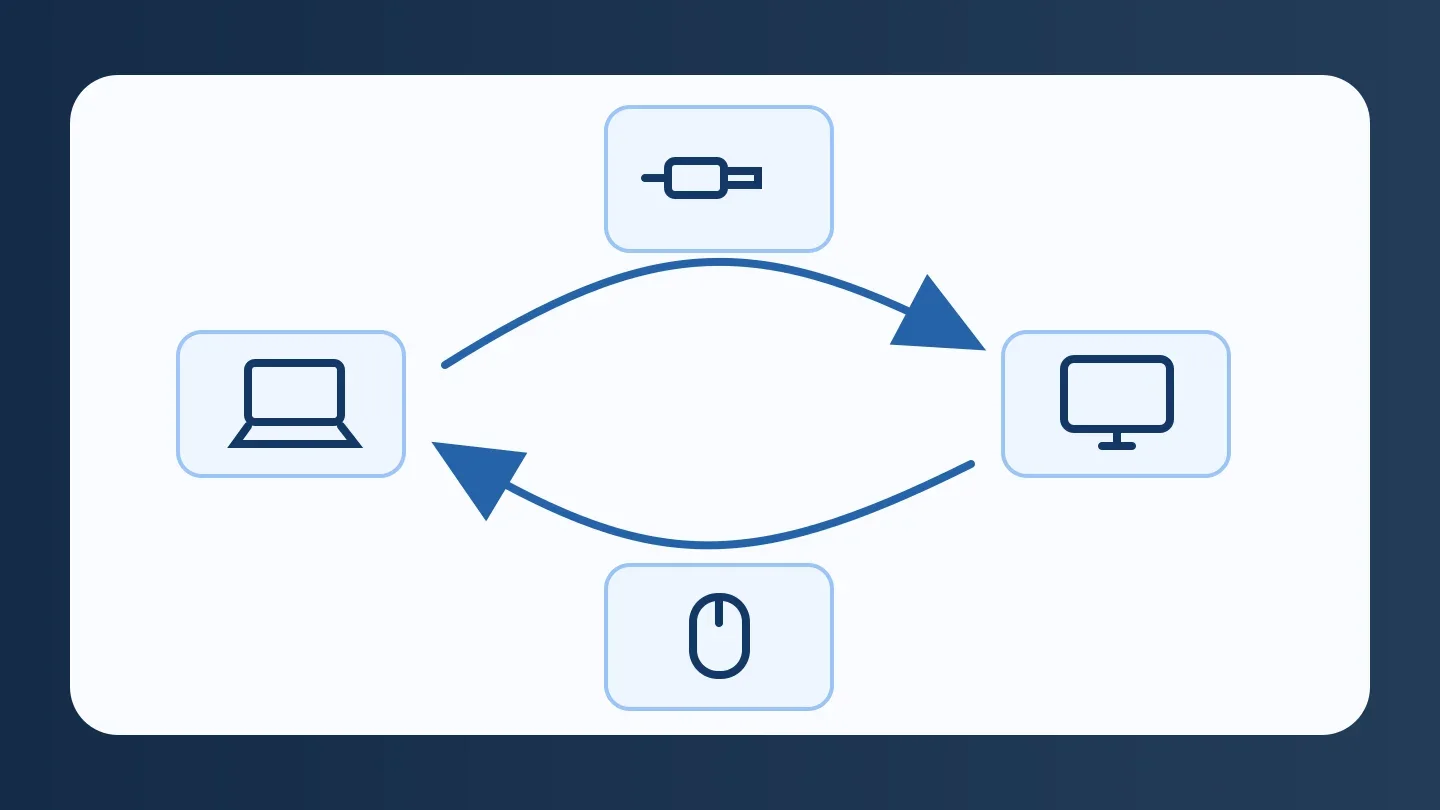
USB-C describes a connector shape. The display, computer, cable and any docking station determine which functions it can carry. In compatible equipment one cable can carry video, audio, USB data and sometimes power. The video connection requires a supported mode across devices. Sending touch back to the computer requires the USB data path, and charging depends on the implementation. Thus a connection that supplies power without video, or video without charging, can reflect different capabilities rather than a faulty connector. VESA's guide to DisplayPort over USB-C explains the relationship between video, data and power.
Use a suitable full-featured cable as specified by the manufacturer and test a direct connection if available. Check docks, adapters and extenders after that baseline. If the issue only occurs through a dock, record which functions survive and whether a different port or connection is needed. Label the cable tested in the room rather than assuming every similar cable is interchangeable. Keep a verified HDMI-and-USB alternative for users whose computer cannot provide all functions on one connector.
Diagnose picture without touch in an orderly sequence
Identify which source the panel is displaying and which computer should respond. Try a panel menu to see whether the touch layer reacts. Then trace the data cable, verify its connection to an appropriate port on the computer and assess detection using the display and operating system guides. Change one variable at a time. Otherwise a simultaneous input, cable and laptop change makes it difficult to tell which mattered. If an extender or hub may be involved, temporarily simplify the setup to a short direct cable that fits the manufacturer's requirements.
If the interaction appears on the wrong monitor, review the computer's display arrangement. An extended desktop can show the classroom panel as a second display while touch is mapped to the primary display. Try a basic task such as drawing near corners, loading an unaffected window and dragging an object. Check device mapping for the operating system and display model. If a pointer works but writing fails in one browser or app, compare with a known application. Pen actions and gestures can depend on application support.
Worked example with a classroom PC and guest laptop
A fixed PC uses a rear HDMI input and teachers connect laptops at the front. A teacher's laptop shows its picture but marks made on the panel go nowhere. The panel's built-in controls still work. The USB data cable remains attached to the fixed computer. After connecting the guest laptop to the HDMI and associated USB Touch pair, annotations register on the laptop. Label the working pair and document how another user gains access to the touch data after the earlier connection ends.
Include a disconnect and reconnect during acceptance. After sleep or an input change, the picture may appear before the computer has established the data connection. Follow the model's recovery instructions and use a basic test before replacing anything. Record whether display mapping survived and which inputs were compared. A problem that appears only after wake-up or only on guest mode gives support a better starting point than a suggestion to try every available connector.
What belongs in the room guide and purchase specification?
Provide an image or drawing of the actual ports with input name, cable type and purpose. Explain how to present without touch, how to enable touch for the intended source and what option exists for a laptop without the expected USB-C capabilities. Check the entire route from the host to the wall and display rather than relying on a short workshop cable. Where the laptop should charge, verify the panel's supply and the laptop's requirements. Keep a record of tested operating system versions and accessories so future replacements can go through the same checks.
The interactive display catalogue and interactive touch screen guide provide additional product and installation context. When comparing models, demonstrate the exact computer already installed and a representative guest device rather than a configuration that can only be reproduced by the installer.
Test finger taps, writing with a pen and moving a window separately. Scrolling without writing in one application may indicate a pen or software limitation while basic touch transport remains functional. Give each test a result in the handover. Later replacements can then be checked against known behaviour before ordering an unnecessary cabling visit.
HDMI and USB touch FAQ
Does HDMI alone send touch gestures?
HDMI usually carries picture and sound. Check the model guide for a separate USB Touch link or a compatible combined connection. A pointer in the display's own interface does not demonstrate that the laptop receives touch.
Why does touch work on only one input?
The data cable may be paired with a different video source. Verify input names or numbers using the guide, switch to the intended source and see which computer actually registers the touch.
Why does one USB-C port work while another only charges?
Identical-looking connectors can support different functions. Verify video mode, USB data and power across the devices and cable. A working direct connection is a useful comparison before investigating an adapter or extender.