Modern business communication depends on holding smooth, high-quality meetings from anywhere in the world. A video-conference system is a practical solution for professional conferencing. Goldtec Multimedia Systems specialises in advanced solutions in this field.
Why is a video-conference system essential?
A video-conference system supports multi-participant calls with clear communication. It can suit organisations with remote branches, international businesses, home-working teams and education providers offering online lessons.
It can reduce travel, lower costs, improve efficiency and support a sense of connection between staff at different sites.
How to choose the right video-conference system
- Video and audio quality: quality systems can support natural meetings with HD or 4K video and noise-filtering audio technology.
- Ease of use: select an intuitive system that enables staff to join without continuous technical support from computers, tablets and smartphones.
- Information security: look for encryption and strong security layers to protect company information.
- Integration: select a system that works with current business software such as Microsoft Teams, Zoom and Slack.
- Support and service: professional support is important when faults occur.
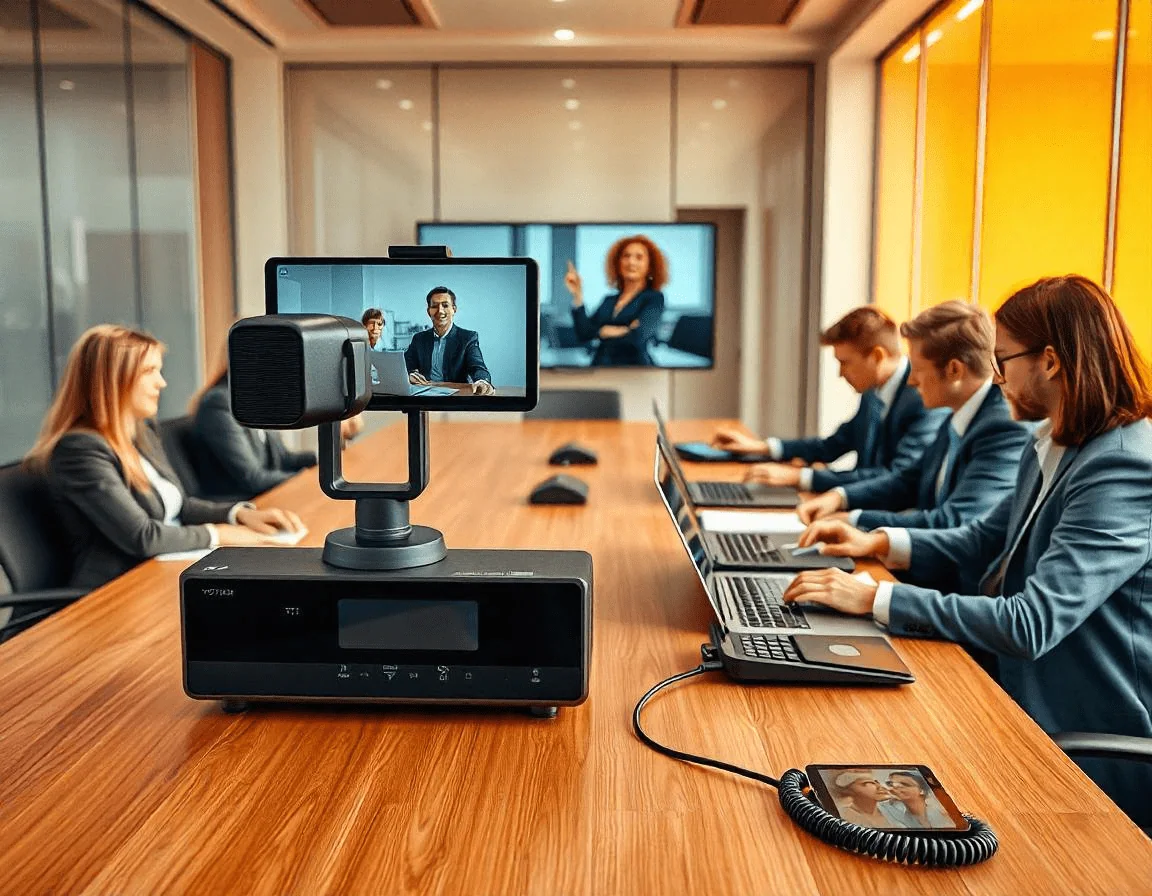
Goldtec Multimedia Systems services
- Advanced video-conference systems for small and large meeting rooms
- Professional interactive touch displays for meetings and presentations
- Sound and amplification solutions for high-quality communication
- An advanced repair laboratory for equipment types, with original parts where applicable
With professional experience gained since 2007, Goldtec can provide a tailored solution and professional service.
How to get the most from your video-conference system
- Improve lighting: light the room appropriately and avoid shadows that interfere with calls.
- Check the internet connection: stable, fast connectivity is essential for smooth calls.
- Check equipment before the call: confirm cameras, microphones and speakers work correctly.
- Use a professional background: a clean background reduces distraction and communicates professionalism.
Technology innovation in video conferencing
The field continues to develop with technology such as artificial intelligence for automatic speaker recognition, intelligent noise reduction and real-time translation in multiple languages. These technologies can support efficient global meetings in complex environments.
Why choose Goldtec?
Goldtec offers quality multimedia and video-conference solutions with personal, dependable, professional service.
- Personal service tailored to business requirements
- Innovative solutions
- Warranty and technical support throughout the project, subject to applicable terms
Join the video-conference revolution
For a video-conference system that delivers a high-level experience, contact Goldtec Multimedia Systems for professional advice and a no-obligation quotation.
Identify the meetings the room must support
List three scenarios that recur during the week. These may include an internal Teams meeting, a supplier presentation whose host sends a Zoom link and a board meeting where people need to see the slides and remote attendees at once. Record who starts the call, whether visitors need to share and which seats must be heard. These requirements drive connectivity, software and the pickup areas you must validate.
Ask someone to find the invitation, join and show a file without the installer helping. Record any cable change, manual audio selection, request to enable sharing or need to rebook the room. These notes expose workflow problems that can be resolved with configuration or instruction.
Dedicated room system or a guest laptop
A dedicated room system generally uses a room computer or appliance, a controller and a shared calendar. It can suit an organization that uses one meeting platform most of the time and wants consistent operation. Verify room booking permissions, controller behaviour, third-party meeting access and ownership of licensing and software updates.
With a guest laptop, the user hosts the meeting from that device and connects to the room display, camera and sound as supported by the setup. Test a managed company laptop and an external device. An adapter may carry the picture while the camera and audio depend on a separate connection. Document the intended connector and how users know it is working.
A room can combine a dedicated platform with guest mode. Make it clear which mode is active and how normal operation resumes. Test invitations, camera, audio and sharing on every path staff use. Interoperability depends on equipment, software versions, licensing and the host's meeting settings.
Design for the person joining remotely
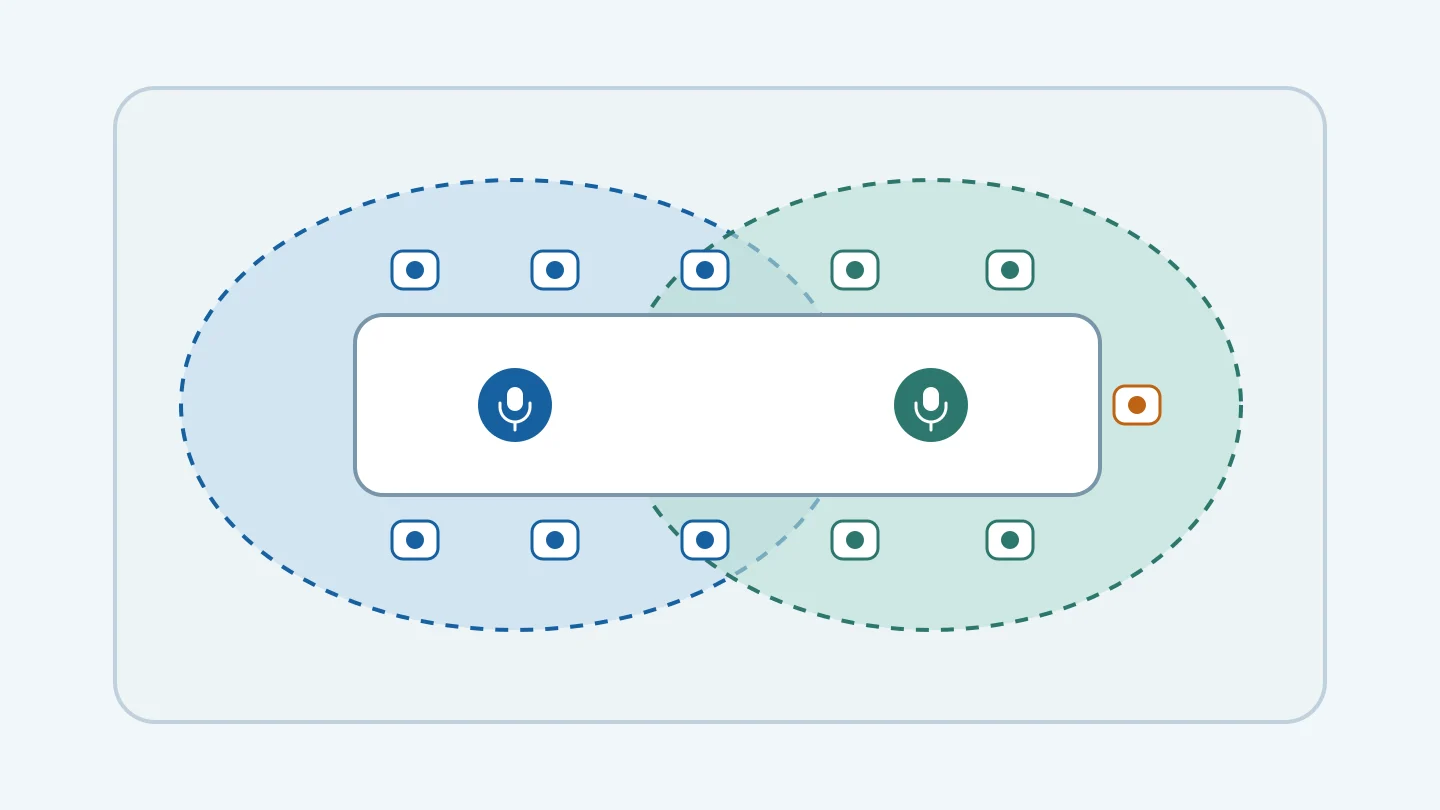
Seat people at both ends of the table and start a meeting from a device outside the room. Check whether the remote listener can understand a full sentence from every seat and can follow a presenter who turns toward the board. Tune the system for natural speaking levels. If people in the room join from personal devices to share, leave meeting audio on the room system to avoid an additional path.
Choose screen and camera placement around where people look during a discussion. If presentation content and faces share one display, demonstrate the layout. For two displays, test how the platform separates content and people, including when the meeting is joined from another platform.
Run an acceptance test staff can repeat
Try a meeting under normal operating conditions. Start with an internal call and continue with an external invitation. Test joining, sharing with sound, visibility from edge seats, listening remotely and mute controls. Disconnect the guest laptop and end the call. Start another meeting to confirm that audio and camera settings return to their defaults.
Write an observable result for each test. For instance, a person on the remote end should be able to repeat a sentence spoken from the far seat at normal volume. Give staff a quick guide, a way to switch to fallback and a contact for faults. Record the connection diagram, equipment versions and test date to use after a software or layout change.
Video conferencing system questions
Can a Teams room join a Zoom meeting?
Some configurations support joining third-party meetings, subject to the device, version, organizational settings and invitation type. Trial an external invitation and test the sharing features your users need.
When should you add a microphone beyond the video bar?
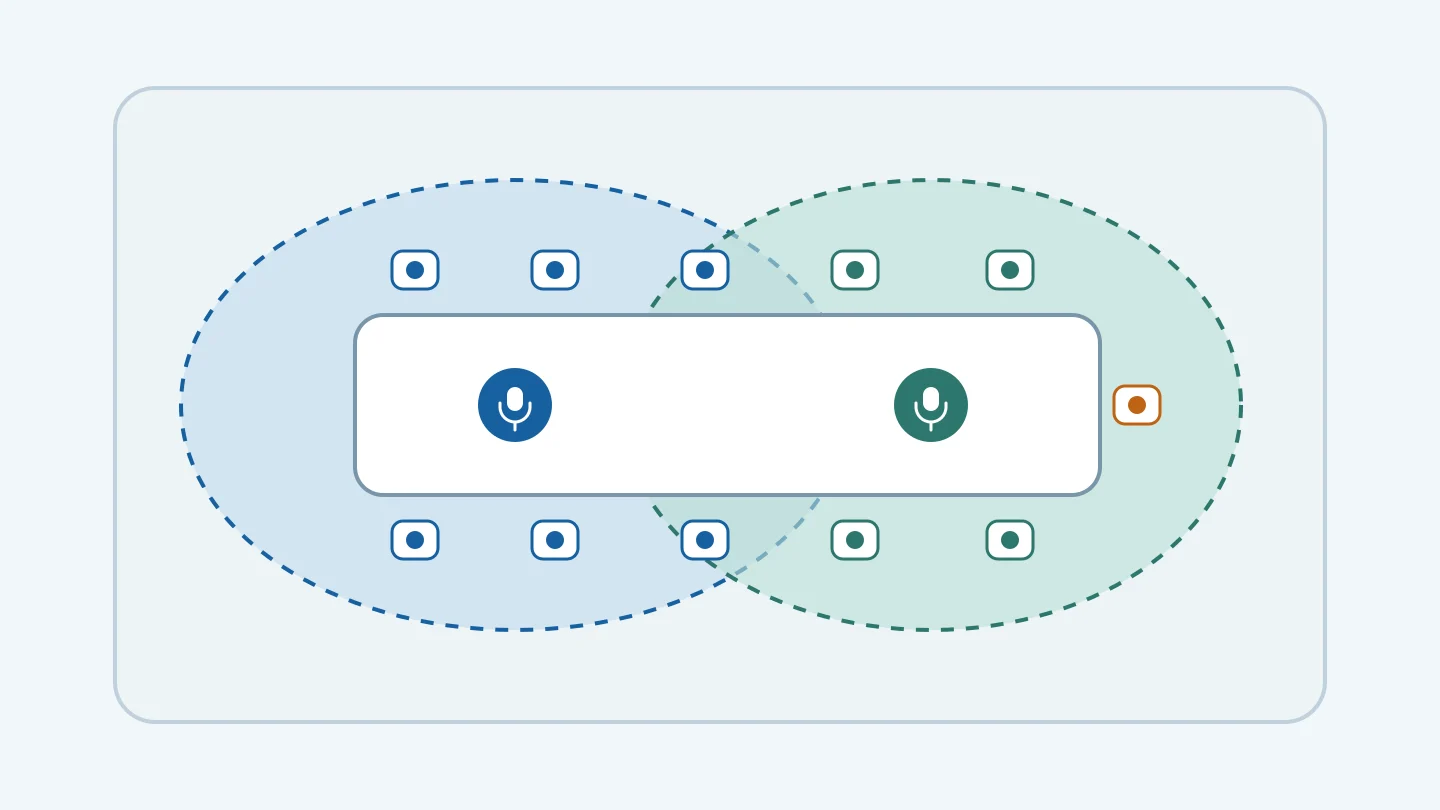
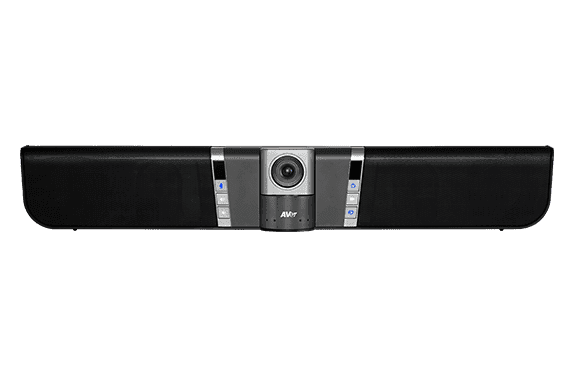
Consider it when people far from the bar or near the board cannot be understood consistently. Check position, noise and acoustics, then demonstrate additional compatible coverage.
How do you decide between upgrading and adjusting the existing room?
Compare seats and document the circumstances of the issue. Input selection, a second audio path or a guest connection may be addressed by configuring the existing hardware and repeating the acceptance test.