Get three separate details from the specification
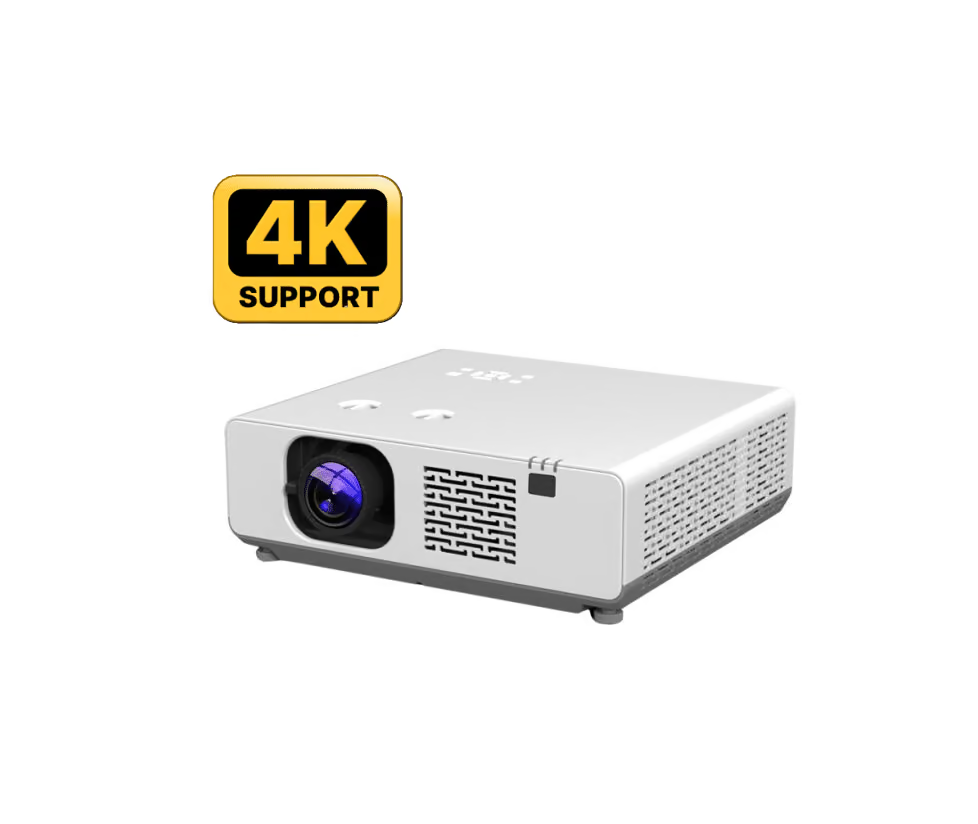
Write down the resolution of the physical imaging device, the method used to form the displayed image, and the highest input format supported by the actual socket you will use. Details are not always in the headline. Look under native resolution, displayed resolution, projection system and supported video inputs. If all you can find is a 4K support badge, ask for the manual or data sheet that distinguishes the imaging device and display method from input handling.
In consumer installations, 4K UHD usually means 3840 by 2160. Some equipment and content formats use 4096 by 2160. When the system includes a receiver, computer or console, record what the source actually sends. A general 4K label cannot specify refresh rate, colour depth, chroma sampling or HDR. Those are separate constraints to verify for the source and application.
Check each intended input individually. Two sockets can look identical while supporting different maximum modes, enhanced bandwidth settings or compatibility with protected playback. The desired imaging mode may also constrain other settings. Gaming presets, geometric correction and image processing can interact with input or display options depending on the manufacturer. If a feature is essential, ask for a support reference for the exact model and firmware rather than assuming that a family name settles it.
How native imaging and pixel shifting affect the result
A projector with a native 4K imaging device has a physical pixel grid at the stated target resolution. That detail still passes through optics before it appears on a screen. A suitable lens, a flat surface and accurate focus are necessary to retain detail. When you compare candidates, inspect the corners and the centre, since a sharp point at the centre does not establish uniform focus over a large picture.
Pixel shifting displays successively displaced parts of the image within a short interval. A TI implementation divides an incoming UHD frame into sub-images and places them at distinct positions on the screen. There are other implementations that use different numbers of positions or project different numbers of addressable points. Check the stated output and implementation of the product you are considering. Then use a fine-detail pattern to compare results rather than treating all pixel-shift systems as one specification.
With a projector that accepts UHD and scales it to its display resolution, the interface may be useful because multiple inputs and a receiver can remain in one configuration. The physical or displayed pixel count is a different question. A projector information screen may show an incoming UHD signal even when fewer image points are shown. Check the imaging section of the data sheet before using the signal report to infer resolution on the screen.
Demonstrate the difference at the actual seats
Compare both pictures on the same screen, from the same seats and in the same light. Use the same player or the identical downloaded file, and record focus, picture preset, sharpening and aspect settings. A brighter picture or aggressive sharpening can look crisp on first inspection without resolving more small detail. Begin with moderate settings and inspect fine objects such as branches, textured clothing and small lettering on dark backgrounds.
Observe the result at the normal seating distance. Tiny differences that appear beside the fabric may be less important from a sofa or behind a conference table. In a training room showing spreadsheets or maps, the practical question is whether staff can separate nearby lines and read labels from their usual positions. In home cinema, shadow detail, skin tones and usable light output may make more difference to the owner than maximum edge enhancement. Choose at least two representative clips and agree which observations matter for the decision.
Include motion. A promising result with a paused frame may not carry over to sport or games. Use a pan or fast motion sequence and write down the active processing and refresh mode. In gaming, verify input lag for the exact signal and gaming preset you will use. While that mode is active, check whether HDR, geometric adjustment and pixel shifting work as the catalogue suggests for that specific product.
For a computer source, try small coloured text alongside black text at the same size. A difference in legibility can reflect chroma sampling or processing as well as display resolution. Change only the output format, then check whether the difference persists from a normal seat.
Worked example with a 4K source and AV receiver
Suppose a player supports UHD but the projector information screen reports 1080p through the installed receiver. First connect the player directly to a supported input using a short cable appropriate to the desired mode. Confirm which refresh rate and colour format both devices report. Then add the receiver, the installed cable, extenders and adaptors one at a time. Record the first point where the signal drops to a lower mode or begins to cut out. This separates a transport limitation from the display characteristics you were trying to compare.
If direct connection works and only the receiver path changes the result, verify the capabilities of the active input and output on that receiver and review the passthrough setting. Try a film and a game menu, since bandwidth requirements depend on frame rate and colour depth. Avoid changing several devices at once. A single successful picture after five changes leaves the team with no reliable explanation or repair path.
Once the source is confirmed, show the same material on both candidates. Consider whether a difference is in the native content, in processing or in optics between the imaging device and the screen. Record the incoming format reported by the projector, the displayed resolution claimed by the manufacturer and the seat at which a visible difference matters. Those records also make later source upgrades easier to diagnose.
Write a requirement you can verify at handover
Instead of writing only “4K projector”, describe whether you require a native imaging device, a specified addressable output or interoperability with an exact source format. Include screen size, seating distance, content and intermediate equipment. Set a practical acceptance condition. For example, labels at the edge of a slide remain readable from the back row, the picture survives a mode change and a console returns to the intended output after reconnecting. Ask for the demonstrated configuration to be saved with the handover documents.
4K projector questions
Does accepting 4K mean the projector displays 3840 by 2160?
The information menu reports the incoming signal. Read the imaging device specification, projection method and claimed displayed resolution to understand what appears on the screen. Test an appropriate pattern to compare how well detail survives.
Does every pixel-shift projector work the same way?
Some systems use different numbers of sub-images, shifts and mode restrictions. Check the exact implementation listed for the model, then compare fine text and motion on representative material.
Should I replace every cable if the projector reports 1080p?
Start with a direct connection and a suitable known-good cable, and check the source output mode. Reintroduce the intermediate devices one by one. Verify the capability of each selected port before purchasing replacement hardware.