Identify what instructors must do without support
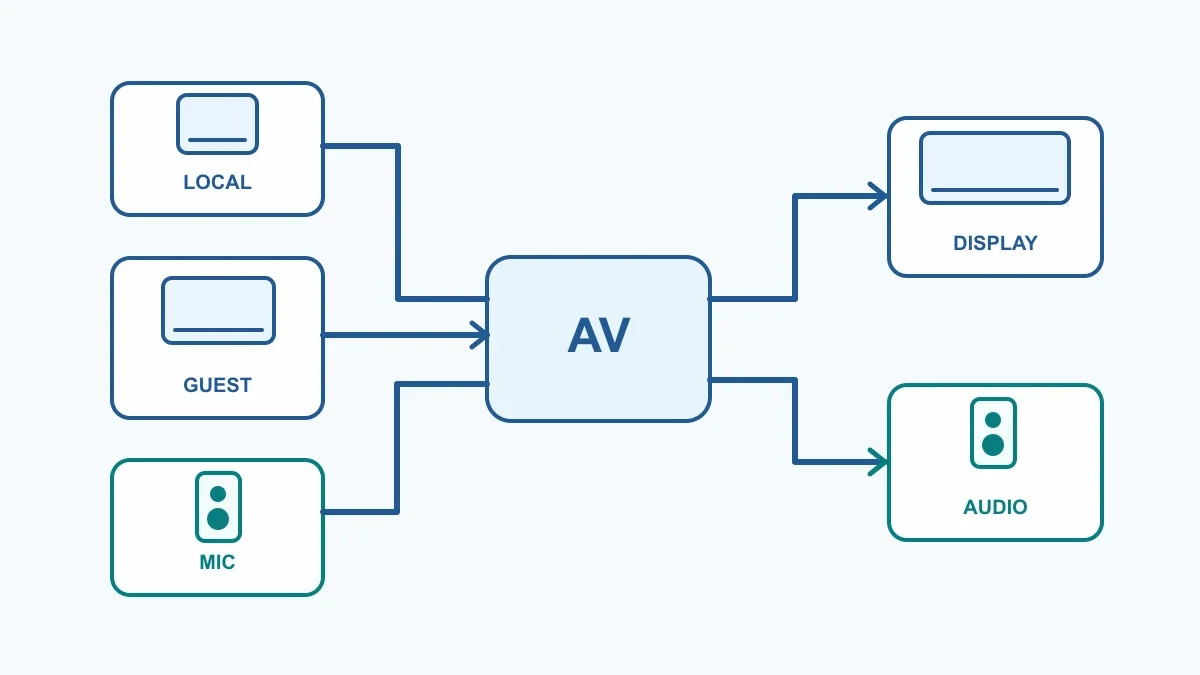
Choose three actual teaching scenarios. An instructor starts a slide deck on the room computer, a guest connects a laptop and plays a clip with sound, and a hybrid session uses questions from both the room and remote participants. For each, describe the picture and audio sources, where they go and how the room is left afterwards. This gives suppliers a clear expectation and gives the institution a repeatable check when the room is handed over.
Ask instructors, support staff and the accessibility team what regularly delays sessions. The display sequence might be unclear, audio could remain muted or the usual guest adapter may not be present. Ask each supplier to address those steps instead of submitting only an equipment list. For a group of teaching rooms, make the core workflow consistent and reserve adaptations for rooms that need additional functions.
Specify content sources and connections
List the managed local computer, guest input, document camera or other inputs actually needed for teaching. For guest equipment, state which computers and connectors will be accepted. USB-C support can differ in display, USB data and charging. If the room camera and microphone must also be available to a guest laptop, make that separate from the requirement to display content. Inspect accessibility of connectors and specify the conditions under which a laptop should charge.
Ask where daily wear items are located and how staff can replace a damaged cable. A locked cabinet should not make the guest input impractical to reach. Use clear labels for the available connectors and agree a cable path that supports the range of movement on any height-adjustable lectern. Test a slide deck, a video with sound and the normal computer state, including a lid-close situation only where that is part of the agreed workflow.
Map sound, display and privacy by teaching mode
Separate the instructor microphone, audience microphones, computer sound and remote participant sound. Specify which people must hear each path in the room, the remote call and any recording. Define who starts and stops a capture session and what visible indication is needed. When there is no authorization for recording or broadcasting, staff still need a straightforward local teaching workflow.
At the lectern, identify whether the instructor views notes, remote participants or the room's shared content. Decide what the audience sees when a guest source is connected and what happens when the instructor returns to the installed computer. In the hybrid mode, verify that remote attendees hear the intended speakers and content without their own return being available as an unwanted feedback path.
Test accessibility and independent operation directly
Include the approach to the lectern, working space, usable control height, visible state and access for seated and standing use, according to the institution's needs and applicable requirements. Consult the qualified accessibility staff for the site and demonstrate the actual steps with representative users. One example is a guest lecturer who needs to reach the source cable, start the session and mute their microphone independently in the agreed teaching position.
Ask for labels that describe an outcome such as Show guest laptop, Mute microphone or End session. Make key status visible without relying on colour alone. Include an accessible help route for the specific room and test whether the class has a simple fallback if a touch control is unavailable. Identify who can restore a room preset without requiring the instructor to reconfigure the control system.
Specify infrastructure and ongoing ownership
Request a drawing that includes power, network, space for supplies, display and audio routes. Confirm which infrastructure is part of the vendor scope and which changes the institution must provide. Leave service access to connectors and adapters that see everyday use. Where document cameras and wireless microphones are included, confirm the normal storage and charging arrangements.
Assign responsibility for software changes. An institution might update its computer, access controls or meeting client. Confirm who retests microphone, camera, source sharing and sign-in after a significant change. Ask the integrator for as-built diagrams, configuration backups and a restoration process that matches local policies. If one control failure could interrupt several rooms, document who can use the working fallback and under what conditions.
Example of a procurement test with measurable results
An instructor uses the managed computer for a normal lesson. A guest connects an approved laptop, shares a video with sound and disconnects. A third lecturer starts a hybrid call, plays a file and returns to audience questions. A person at the back of the room and another on the call confirm that they can see and hear the material intended for them. Check the room's default state before the next session begins.
For each check, write the operator's starting position, expected observable outcome, failure condition and who will resolve it. An example is that a lecturer starts a local slide deck without a personal account, switches to a guest device and returns to the local desktop. Another is the ability to call for help without stopping the presentation. If time matters, agree the target and test conditions beforehand instead of relying on a supplier's fastest possible demonstration.
Compare bids using the same teaching scenes
Give each supplier the same room drawing and scenarios. Separate infrastructure, hardware, licences, installation, training and support. Ask which items are options and which tested need each option serves. When possible, let a small group of instructors trial a representative room. Check source changes, control reach and return to the default state. Update labels or sequencing before deploying the same design widely. After handover, monitor a practical indicator such as the time needed to start a class or repeated requests for help changing inputs.
Questions when specifying a smart lectern
Is a built-in computer required?
It depends on teaching, support and institutional policy. If a managed computer is required for files, software or capture, specify how it is started and closed. For instructor laptops, test the connectors and software that actually need to be supported.
What does a useful handover contain?
Include completed test scenarios, a connection diagram, saved configuration, a concise operator guide and service ownership. Demonstrate a representative lesson and an agreed fallback before acceptance.
How should an institution standardize across different rooms?
Keep frequent teaching actions and commonly used accessories consistent. Add capture, remote participation or additional displays where the teaching scenarios call for them.