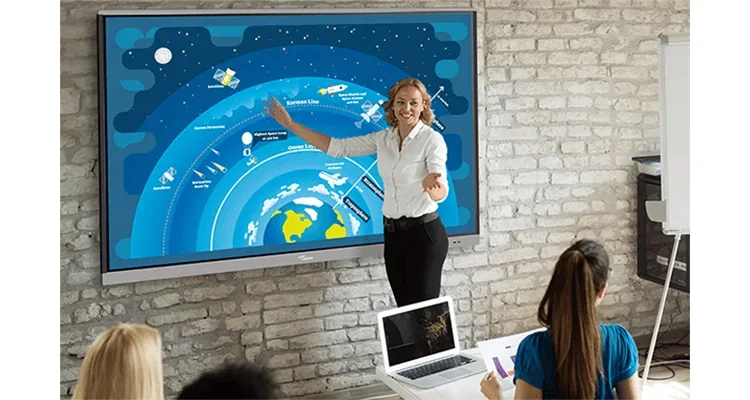
Who presents and what must the class see?
Sharing can mean a teacher showing a document or camera from their own tablet. A student might need to demonstrate a solution to the class. A hybrid lesson may need the same material to reach people in a remote call. Write down each task separately. A demonstration with a teacher's personal tablet does not establish that a student can select the right class and request permission. Showing a student's work on the in-room display does not mean the same content reaches a remote participant.
Design a normal sequence before choosing equipment. The teacher presents first, accepts another presenter at the right moment and returns to their own teaching material after the student stops. Agree which workflow suits the age group and activity. A school that uses tablets across different classrooms during the day does not necessarily need them permanently associated with one display. Decide what should happen when a device shows a notification, a visitor brings a different model or somebody forgets to end a session.
Match devices, receivers and school networks
List the tablets, operating system versions, teaching apps and whether the devices are managed. Check how each sends picture and sound: an operating system feature, an approved application, a dedicated accessory or a wired connection. A route that works on one tablet may not exist on another or may need a different receiver. Compare actual product documentation rather than relying on a general wireless-sharing label.
Schools often give teachers, students and visitors different network access. The receiver needs to be reachable from the intended groups, and its name needs to identify the correct classroom. Ask IT how classroom receivers are named, what happens if a display does not appear and who can adjust the configuration. Apple's AirPlay deployment guidance describes several discovery paths and connection limits. The Apple Classroom resource also shows the distinction between looking at a pupil's work privately and presenting it to everyone where supported.
Design privacy for a busy, ordinary lesson
Determine whether the teacher needs to show the entire screen or can present the prepared document, app window or completed work. For full mirroring, use artificial content to check what happens during notifications, changing applications or opening menus. Tell students what the room will see before they present and ask them to close unrelated work. Avoid using real names or sensitive notifications while finding out exactly how the sharing behaves.
When the teacher can see a request, approve it and end the session, it becomes possible to organise a reliable turn. Ask one intended presenter and another pupil to request sharing in sequence. When the teacher stops a share, confirm the display returns to the lesson rather than showing the previous student's work indefinitely. With an on-screen code, confirm it belongs to the intended room and acts according to the school's session policy. Follow school rules for recording, storing or photographing student work. A device feature that allows capture is not a need to use it.
Prepare a test involving teacher and students
Set up five steps: teacher connects, shares a specific piece of work, approves a student, stops the share and moves to a second presenter. Use a sample file. The student explains their work briefly and ends the presentation. Run a second check in which they put the device to sleep or leave the room. Verify how the display recovers and that earlier content is cleared. Observing familiar mistakes is more informative than a single successful connection.
Include a clip with sound. Check audio on the classroom loudspeakers at the normal level. If it needs to reach a remote meeting as well, have a person there confirm they receive it. When a meeting and local sharing operate together, confirm there is no additional device routing classroom audio back into the same call. Use the teacher's normal app as the source rather than relying exclusively on a test clip built into the receiver.
Worked example with managed tablets and a visiting speaker
Suppose pupils use managed tablets and teachers access them through a classroom management app. A visiting speaker brings a personal tablet. Give the teacher a clear set of routes, explaining what works on guest access and what can be presented with a cable. If the visitor cannot share directly under school policy, the teacher can present the file through an approved route or the visitor can use a pretested wired connection. The lesson then avoids an improvised permissions decision in front of the class.
Run a practice lesson with two presenters in succession. The teacher shares their tablet and practises a fast stop in case the wrong material opens. A student then shares an example. Check that the display gives a useful presenter indication without unnecessarily revealing additional personal information. If there are remote attendees, ensure they see it only as intended. End guest mode and return to the ordinary classroom workflow to make sure the next teacher gets the normal setup.
Leave instructions in the room and records with support
Near the screen, identify the destination and the three actions for requesting, approving and stopping a presentation. Label a tested alternative. Keep exact models, management settings and network requirements with support. After an operating system update or a receiver replacement, repeat a small set of classroom checks under the school's policy. For related planning, see education solutions and the interactive display catalogue.
Test a room change and the support fallback
Tablets often move with groups. Start a test share in one classroom, finish it and move to a second room under a different teacher. Check destination names and confirm the earlier room's state does not return on its own. In a school with several access groups, confirm that each route behaves appropriately after a device changes room or responsibility. Good instructions stay useful when devices have just been reassigned.
During a failed connection simulation, have the teacher follow the quick instructions and use the fallback without losing their prepared material. This could mean a supported cable or opening a permitted copy on the teacher's computer. For support, capture classroom name, device version, network type and the step where sharing failed. Include whether another authorised device had the same result.
Classroom tablet sharing FAQ
Can every tablet share to every interactive screen?
Check the operating system, allowed app, receiver and network together. A connection that works for a managed teacher device may be unavailable to a student or visitor using different permissions.
Can a teacher always stop a student's presentation?
Some setups offer presenter moderation and others rely on the source device ending the session. Demonstrate the stop control from the teacher's normal position before choosing hardware.
What if the display is already showing something else?
Use the approved moderation or source selection procedure. Confirm the previous share has ended before connecting the next presenter. Where needed, use the tested alternative input instead of sending to an unconfirmed destination.