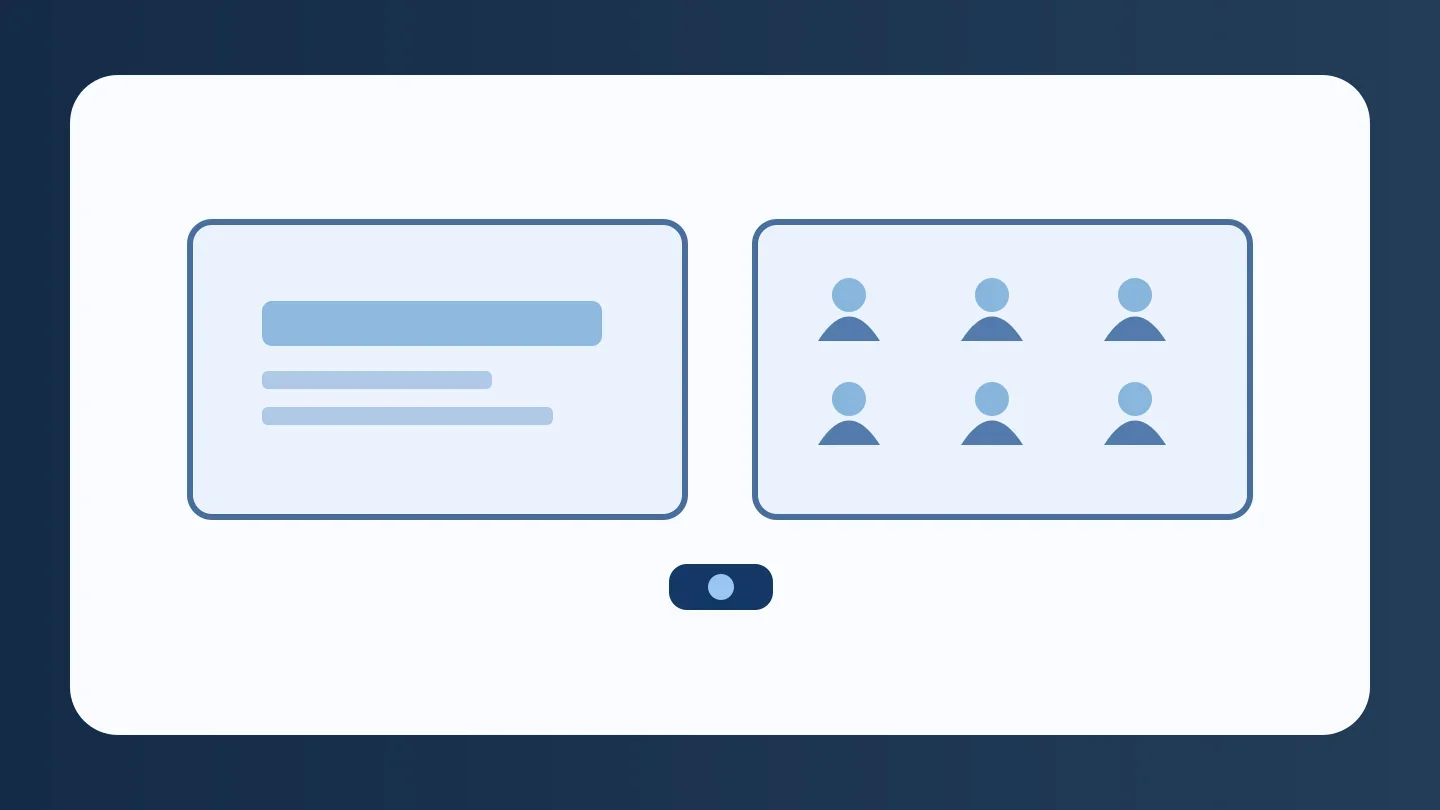
When does a second display solve a room problem?
In a hybrid room, people often want to see remote faces and the document they are working on. When a single screen divides its area between both tasks, text may become hard to read and participant video may occupy an awkward corner. A second display can keep the file large while faces remain easy to see. If most meetings are short conversations without documents, or if the room is shallow and has a narrow front wall, a dual layout may deliver less benefit. Assess how often the separate views are needed and how both displays fit around the camera.
Bring representative content: a report with numbers, a drawing with small labels or a meeting agenda. Use the layout you expect during the call at a similar screen size. Seat two people at challenging locations and ask whether they can read the relevant details without standing. Add a remote participant and see whether normal expressions and gestures remain visible. This is more informative than deciding every room of a certain seat count needs a pair of monitors.
Plan around the direction people look
Find positions that let people see content and remote colleagues without turning completely away from one another. Sketch the table, entrance and usable walls from above, then mark each display and which seats must read it. If presenters look towards a side display while explaining work, the camera may mostly show their profile. Choose the camera position and the display most often viewed during conversation together.
Check viewing height, reflections, distance and obstructions caused by people, laptops and table equipment. The combined width of two displays can conflict with a doorway, storage or access needed for repairs. If the displays are separated, also demonstrate how a remote attendee sees the presenter reaching for the board or turning towards the side display. The meeting room camera field-of-view guide helps check coverage from each seating position.
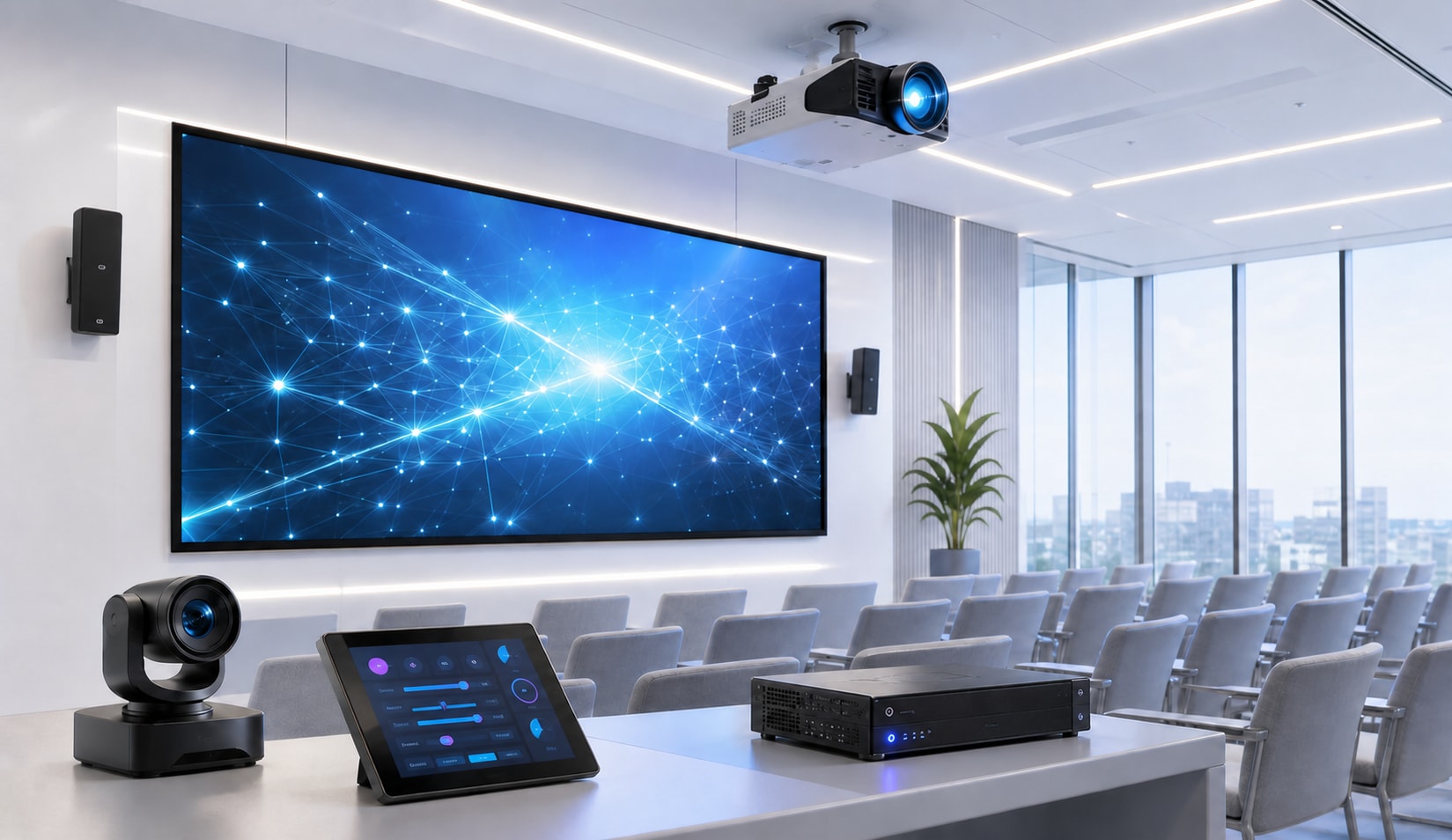
Specify what each screen should do in each mode
Write what should be on display one and display two in each state. At idle, the main screen may show a calendar or room welcome while the other is on standby. During a meeting without shared content, the extra display may show more participant video or a duplicate view, depending on the application. While sharing, decide which screen holds the content and where the remote people appear. When sharing stops, the room should return to a usable layout without asking the host to select an input again.
Not every dual-screen workflow requires two simultaneous sources of meeting content. A design review might need a drawing and a spreadsheet next to one another. A team update may be better served by one document and the faces of remote colleagues. Those are different requirements for the conferencing application. Zoom's documentation for multiple screens in a Zoom Room describes assigning shares to displays in supported configurations. Microsoft's room planning guidance considers both single and dual front-of-room configurations. Verify the relevant device and meeting path rather than extrapolating from the name of the feature.
Check outputs, adapters and display recovery
Decide whether the two signals come from a dedicated room device, a room computer or a guest laptop. For every source type, establish how many independent outputs remain available in the installed configuration. A simple splitter can distribute one signal but will not give you two independent desktops. For a guest laptop, check if the application gets two logical display surfaces and where presenter notes appear. If people rely on a speaker view, verify that speaker notes are never accidentally projected to the audience.
Confirm that each screen receives a supported resolution using the complete installed cable route, including extensions and adapters behind the cabinet. Disconnect one screen and reconnect it with the other still active. Test the normal shutdown and restart order and check whether the display numbering or input assignment has changed. If a system swaps display order after waking, the result can look like a meeting platform problem even when it comes from the display connection.
Worked example with a local and remote audience
In a fourteen-seat room, ask a remote attendee to share a document. A person far from the wall reads a small figure from a table. Change to the layout that shows the remote participants on the second display and confirm faces remain recognisable as other people join. Next, ask a local presenter to share and start a discussion. Observe whether they face the camera naturally when they consult each display. This helps check room controls and viewing positions before accepting the design.
Test what happens when the second display is unavailable. Turn it off in a controlled test and check if the call can continue with shared content and remote people on the main screen. Document what the host must do, then restore the second display and see whether its role returns. Repeat a separate external invitation through another platform when that use matters. An external meeting reached through guest join may behave differently from an internal meeting on the same room hardware.
Leave operating instructions the host can use
Near the controller, describe each display's role, how to show a document and how to stop sharing. Explain when to connect a guest laptop. Use an artificial file to demonstrate the difference between sharing a presentation window and exposing the entire desktop where sensitive information is a concern. Update these directions after changes to the room software or standard layout. If rooms differ across the organisation, say which displays perform which role. Labels like “content” and “participants” can stay consistent even when the hardware and input names vary.
For broader planning, see meeting room solutions and video conferencing equipment. Ask to test a representative agenda and your own meeting types before committing to the screen sizes.
When to compare a single wide display
If the front wall is narrow, a wide display may accommodate faces and content in a supported layout. Demonstrate the same documents and remote participants in both layouts. Compare readability and camera alignment. Include an external invitation since support for widescreen layouts may vary by join mode.
Dual meeting room display FAQ
Is an HDMI splitter enough to use two screens?
A basic splitter can show the same source on multiple displays. Putting content and video participants on different screens requires the source, the room connection and the meeting software to support separate views.
Do both displays need to be the same size?
A larger content display can help the people who need to read small details, while an alternate size may be adequate for faces. Test both uses from the actual seats, including the balance between camera position and viewing height.
How do we know whether an external call behaves like an internal one?
Join a representative invitation hosted on the additional platform. Check the remote view, incoming and outgoing shares and where both displays are used. If the behaviour differs, document what the controller supports and when staff should use a laptop instead.