Identify exactly what people are hearing
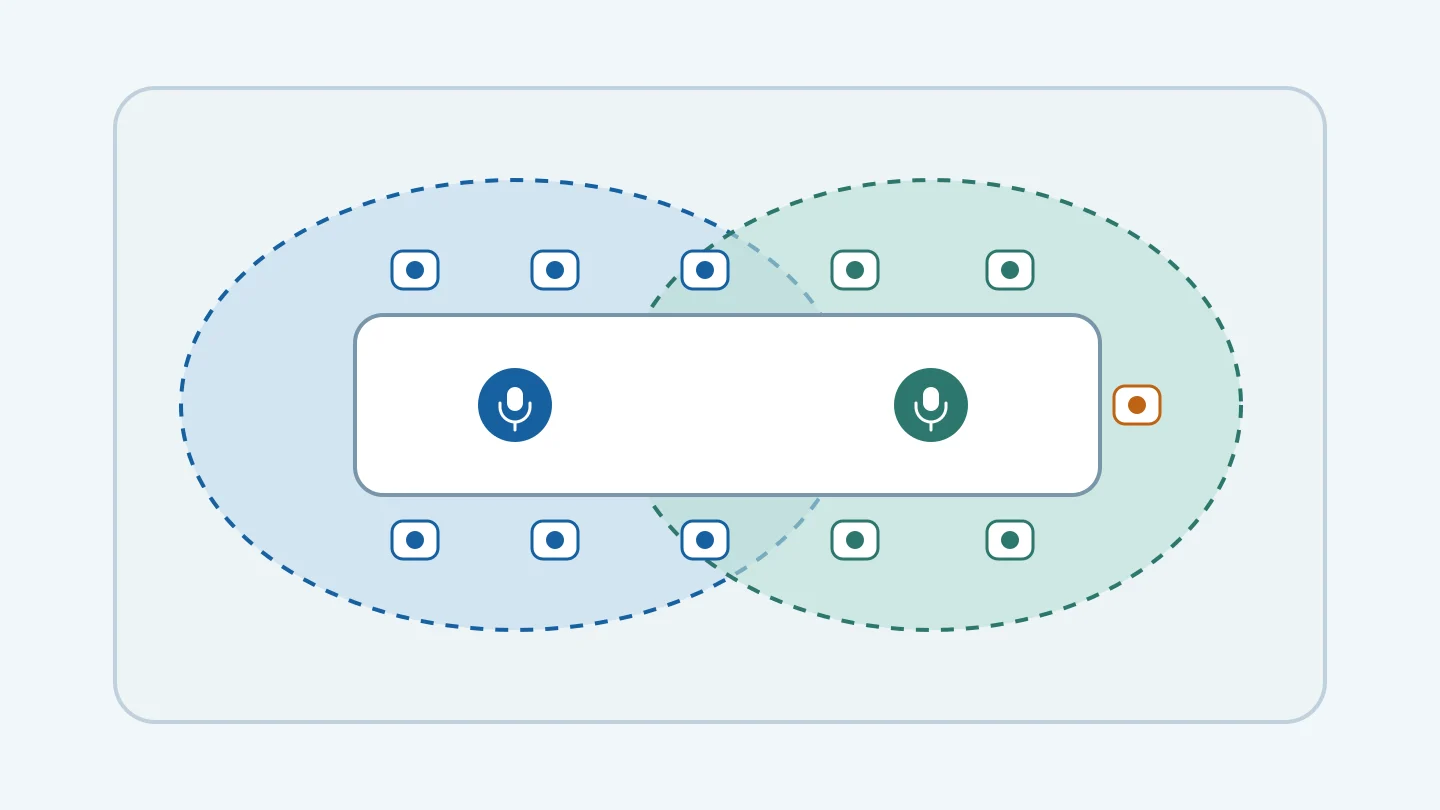
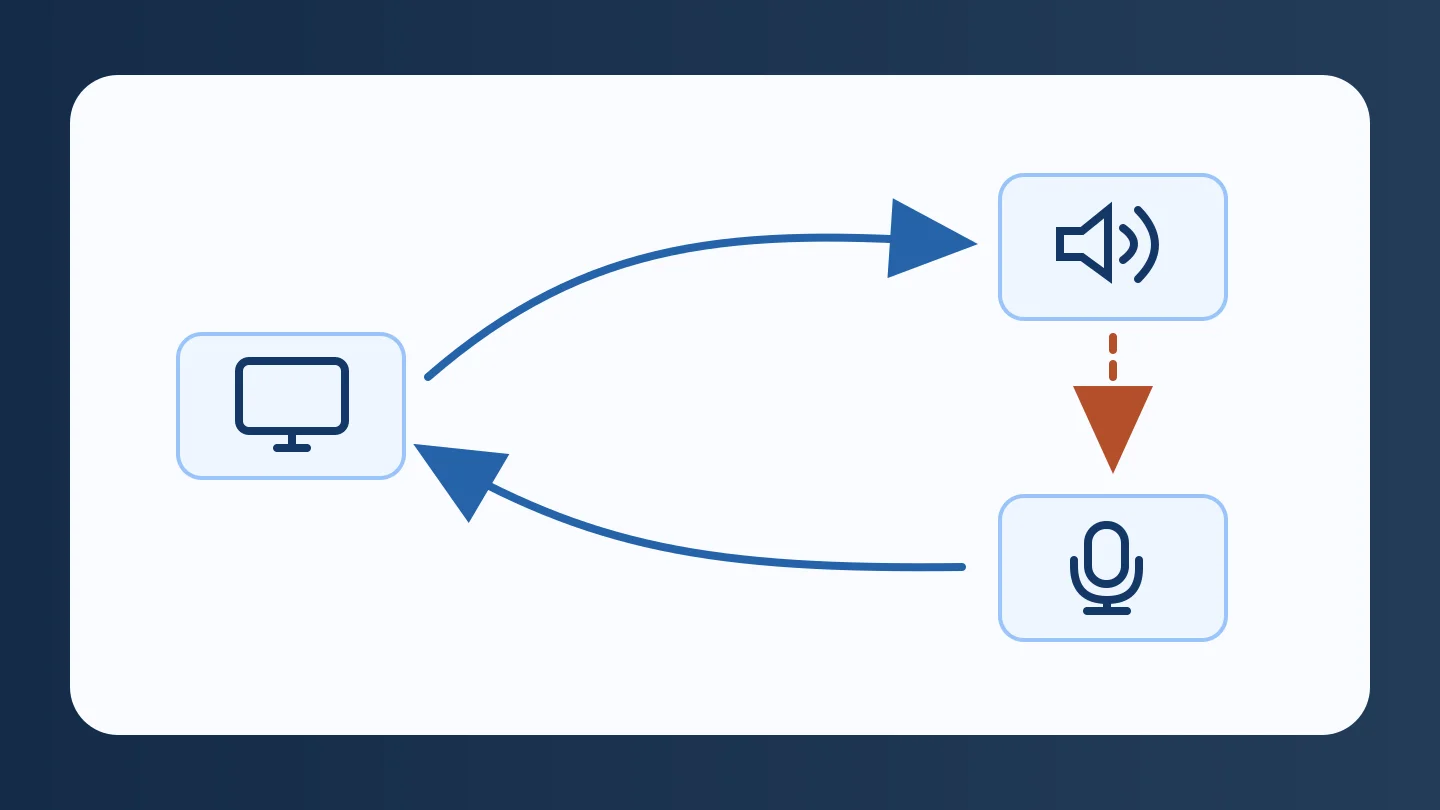
Video call echo is usually a delayed copy of the talker's own voice. If a remote caller hears their own words come back, start by examining a room that received their audio. It may have played the voice through its loudspeakers and picked it up again through a microphone. An additional laptop may also be playing meeting audio in the same physical space while its user intends to share slides. In a multi-party call, identify who speaks and who hears their own voice before changing settings.
Similar symptoms need different tests. Hollow sound heard by people in the room can indicate a highly reflective space, even with the equipment off. A squeal that grows when local loudspeaker volume is raised may be acoustic feedback. A voice breaking up without a delayed copy calls for separate checks of device selection, processing or connectivity. Capture a brief observation such as “The remote guest hears their sentence return after a short delay.” This helps the team decide which endpoints to disconnect and in what order.
Recover a live meeting without reconfiguring the room
Keep one audio connection in the room. Usually this is the room system or one laptop linked to all the room peripherals. Have other local participants select a join-without-audio option or disconnect conference audio in their apps, where available. Muting only a microphone can leave the same laptop loudspeaker active. The Zoom echo troubleshooting guide distinguishes muting a microphone from disconnecting computer audio.
Once only one endpoint is active, ask the affected participant to speak again. If the echo stops, have another person share content without connecting their audio as a separate speakerphone. When the presentation requires a video with sound, use the supported content audio path. In a time-critical session one person can switch to a computer with headphones and disconnect the other sound systems, where the setup permits it. That can make a conversation possible for one participant but is a poor permanent arrangement if everyone in a meeting room needs to speak from their seats.
Separate the local room from another endpoint
Create a test call with just the meeting room and one remote listener wearing headphones. Let the remote listener talk for several seconds and listen for a return. Temporarily mute the room microphone and repeat the same speech. Then unmute it and try again at the same playback volume. A repeated change in the outcome supports a routing or pickup diagnosis. It is more useful than a single observation in a busy call, particularly for a fault that appears only when people overlap.
If nobody hears the issue in the small test call, introduce other endpoints one by one. Check that each person uses a single audio path. A person might join the same meeting with dial-in on their phone and audio on the laptop, or have a second connection that stays active after they leave on another device. Record who read each test phrase and which connection was removed. When an endpoint is identified, repeat the scenario before treating it as confirmed.
Pay attention to changes that start during a presentation. If the echo begins when a clip plays, the audio route or playback level could be changing. Establish ordinary speech before sharing, then test media and media with a local speaker talking. If the problem appears when a laptop reconnects, note which input and output the operating system and meeting application select before and after reconnection.
Trace the room system when one endpoint still produces echo
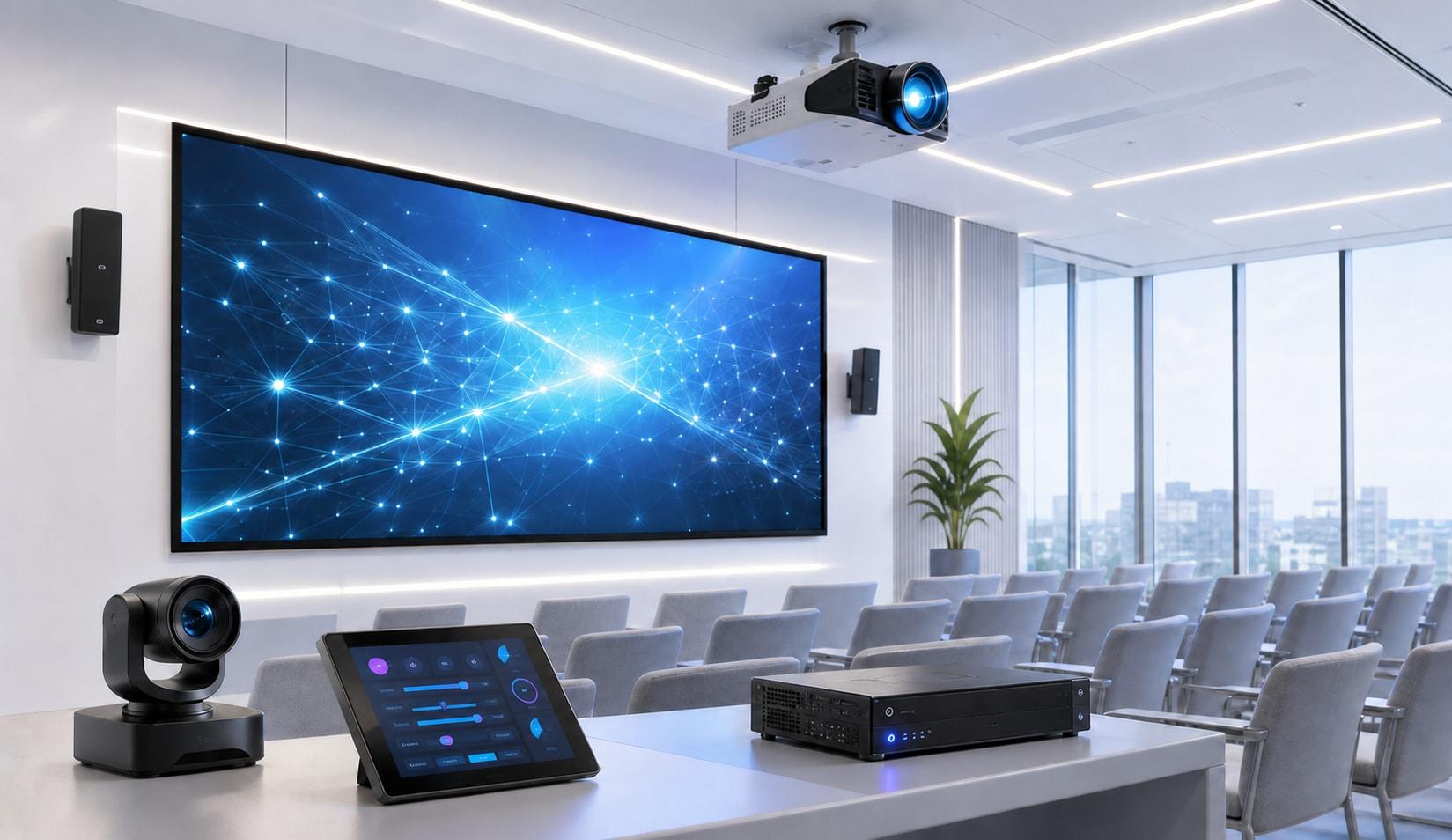
The technician needs to see both directions of the signal. Map the local microphones through to the conference app, then map the remote voices from the app through to the loudspeakers. On a system with an audio processor, identify where acoustic echo cancellation takes place and how that processor receives a reference of the sound sent into the room. An extra playback path through a display, a powered speaker or an adapter can create local sound absent from the documented configuration. Check what is physically playing and which output channels are active before choosing replacement hardware.
Microsoft's Teams Rooms operations documentation distinguishes processing on Windows and Android and describes how a certified DSP can take responsibility for acoustic echo cancellation on a Windows room device. The practical implication is to identify which equipment is actually processing the audio in the installed configuration. A product description that lists echo cancellation does not determine the processing path for every room and connection mode. Give support the room app version, model of audio processor and connection in use during the test.
Account for physical conditions. Compare normal playback with a modest change in volume within comfortable limits and leave other variables steady. Check where the speaker in the room was facing and whether loudspeakers, the table or the microphone moved after handover. A good result during commissioning with a single seat occupied does not establish performance after the placement or room use changes.
Worked example: the room works until a guest laptop joins
Suppose remote speech in the fixed room mode is clear. A guest connects and suddenly participants hear a return. Verify that the fixed endpoint left meeting audio, then check both the input and output selected in the guest application. The room camera can continue working even if the operating system has automatically assigned sound to a display output rather than the intended room audio equipment. Make a short call in the fixed mode, record its active sound devices and repeat the same call from the guest laptop with both audio devices selected intentionally.
When a selection resolves the problem, leave an instruction at the connection point with the name of the appropriate device. Try the path after disconnecting, using a second computer and asking someone unfamiliar with the room to follow the instruction. If echo persists even with the intended devices, the technician has an established baseline to investigate the loudspeaker route, processing and room profile. Add the failure and retest to the meeting room audio acceptance test.
What information helps the installer reproduce the problem?
Record where the echo was heard, who spoke, the platform, the current room device model and the input and output displayed in the meeting. Add room volume, ventilation state and whether the issue involved a video or a guest connection. If equipment changed or software was updated, include what changed and when. Repeat the same test after one adjustment and verify that speech itself stays clear. See the guide to video conferencing systems and meeting room solutions for related room design.
Video meeting echo FAQ
Should the person who hears their own echo mute?
Mute is useful as an isolation step. Investigate the endpoints that play and return that person's voice. Have one person speak and temporarily mute one receiving endpoint at a time.
Why is the echo only audible at higher volume?
Higher playback levels may increase the part of the voice reaching the microphone or change the prominence of reflections. Note the level at which the problem begins and whether another active playback path is being used.
Do headphones fix meeting room echo?
Headphones can help a single user or isolate the receiving end of a test call. A room intended for several people still needs an audio route that works from the normal seats without requiring everybody to use headphones.