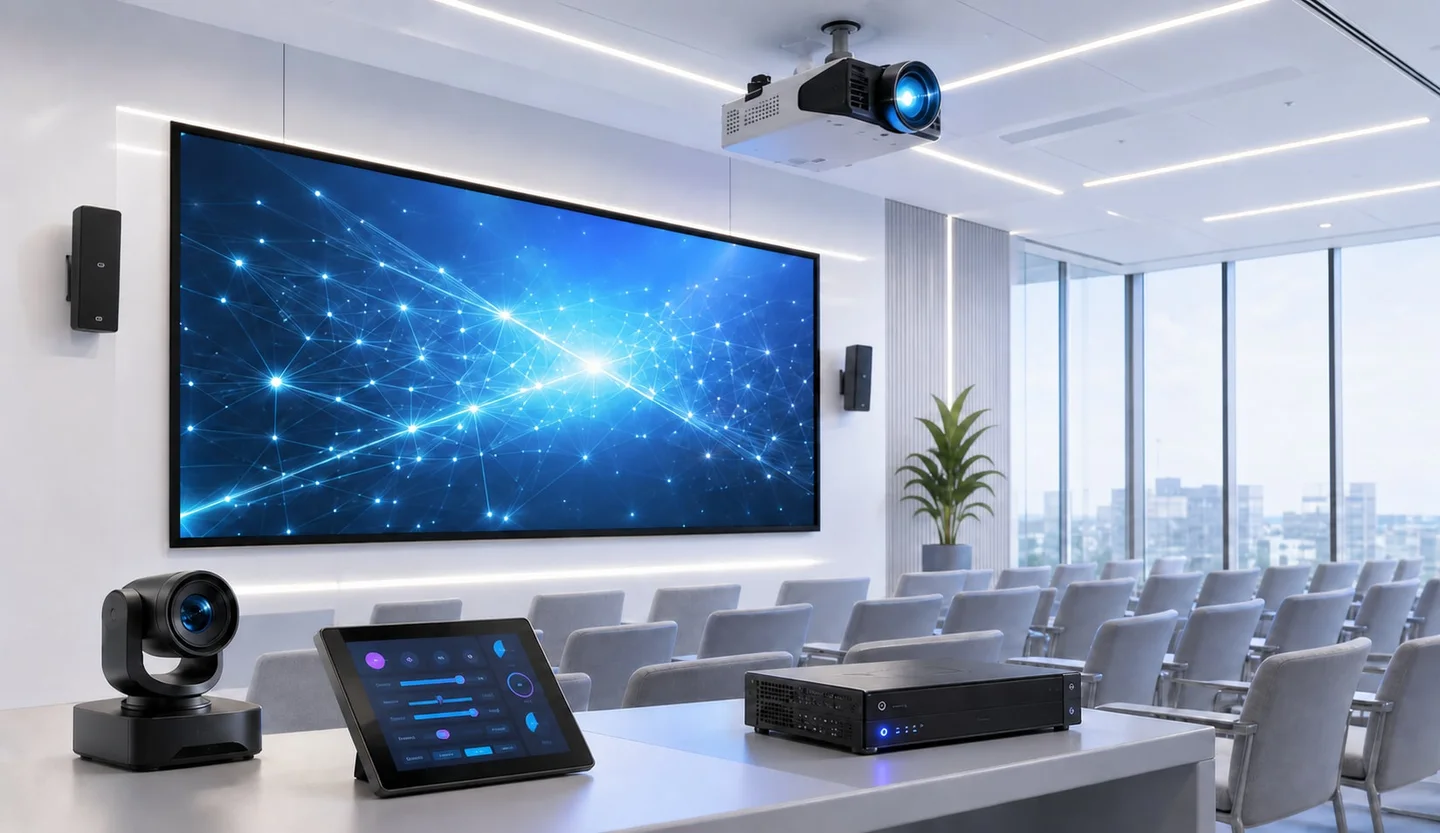
Start with the invitations the room actually receives
Support for Teams and Zoom can mean two different things. The room system may join from the room calendar or console. Alternatively, a user may open the meeting on a laptop connected to the room display, camera and sound. Both can get people into a call. Joining steps and the functions available once they arrive may differ. Before asking for a proposal, list the internal meetings your organisation hosts, the invitations clients send and the tasks users need to complete after joining.
Identify the party that controls host permissions. A customer may enforce a lobby, restrict sharing or require people to authenticate. Hardware can be compatible with a service while a particular meeting does not admit the room. Collect one invitation sent directly to the room and one forwarded to it. Test them with the proposed equipment. A special demonstration invitation may be less restrictive than invitations your staff use every day.
What should be verified for direct joining from the console?
Microsoft describes multiple third-party meeting routes for Teams Rooms, including Direct Guest Join and a SIP-based path. They differ in licensing and infrastructure. Sharing content, controlling the camera and spanning two displays can also differ by meeting path. Support depends on the meeting provider, room equipment and settings. Start with Microsoft's third-party meetings documentation. Require an actual demonstration before adding a one-touch join requirement to the accepted design.
Zoom Rooms also has ways to join other services depending on device software and configuration. For an externally hosted Teams meeting, provide a real test invitation and observe how the controller recognises it. Determine what participants can do after joining at the console and whether the invitation needs additional information. See Zoom's documentation on other conferencing services. If the room relies on a particular join method, document a supported laptop alternative for users.
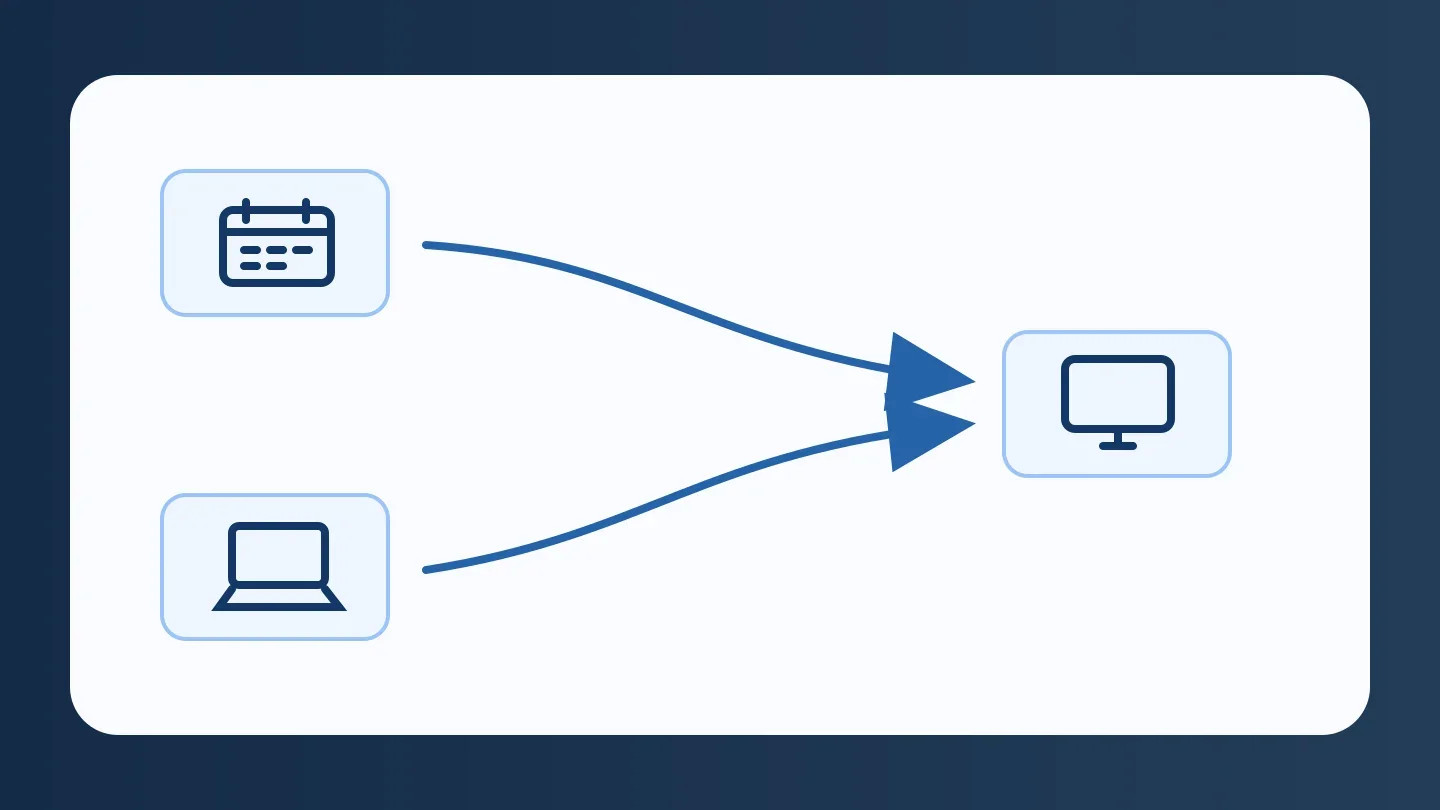
Separate joining, viewing and sharing
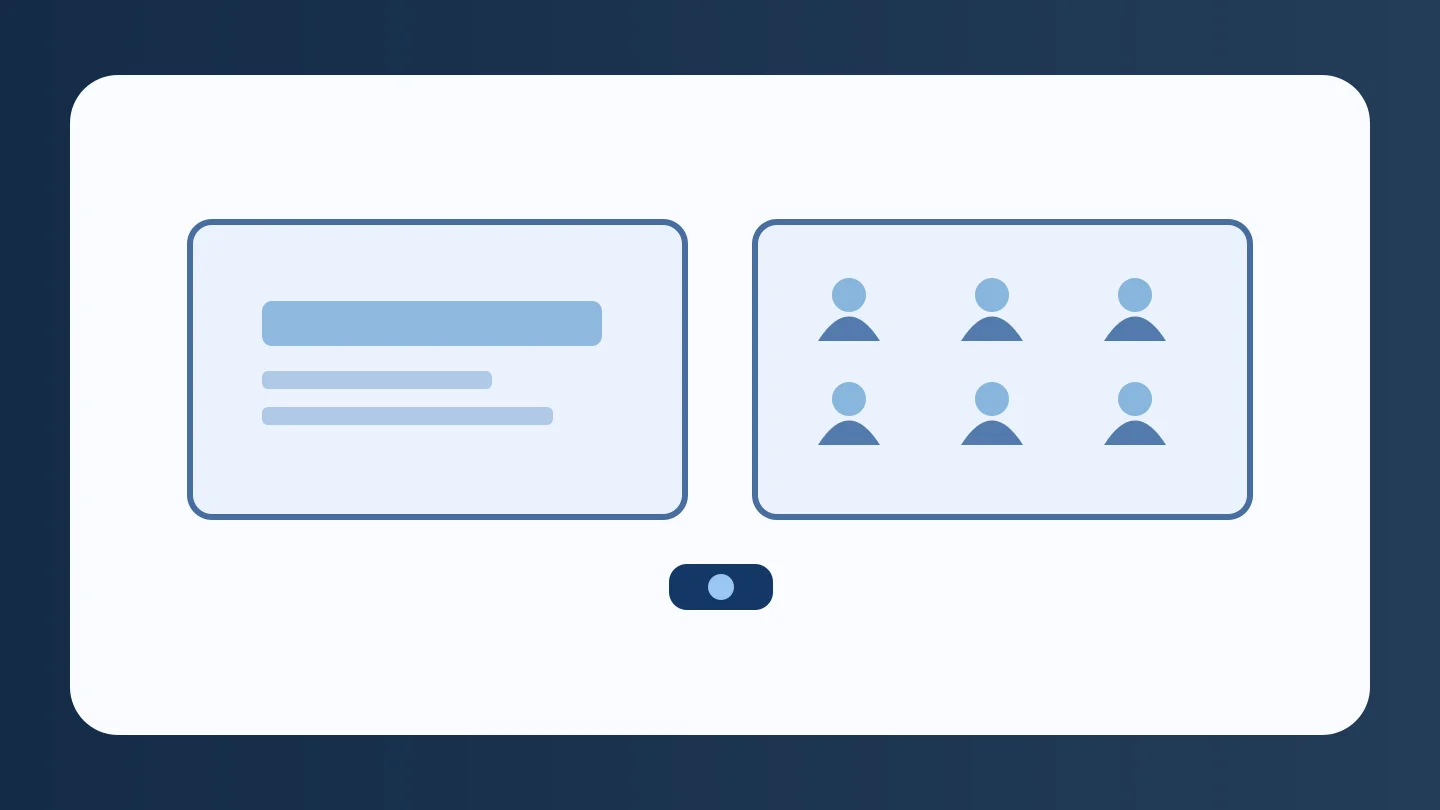
After the room successfully enters a meeting, ask a remote participant to verify that the intended seats are within the camera frame and that ordinary speech is intelligible. Check how the room sees and switches between speakers. With two displays, verify whether the content and participants appear together or are assigned to separate screens. Then receive shared content from a remote participant and ask the room to send its own. Receiving and sending may follow different capabilities.
Show an application window and then play a clip containing sound. Have the remote participant verify which sound reaches them. Test mute and unmute from both ends and see whether the room's indicator corresponds to what the other side hears. Captions and access to sound controls should be explicit acceptance criteria where staff need them. If a required function is unavailable through the room's join path, give people a documented way to open the meeting from a laptop instead.
Worked example with three meeting formats
A ten-seat room hosts an internal Teams meeting, a Zoom product demonstration for a customer and a training session that needs two displays. For the internal call, ask an employee to book the room through their usual calendar. They should enter with their laptop closed and call using the room setup. For the external demo, ask the client to send an invitation through their normal workflow. Confirm the room receives the invitation and recognises the join details. Test content going out after joining because the customer specifically needs to see the product.
For the training session, start from a computer with two display outputs if that is the agreed path. Verify camera, sound through the room, content audio and visibility of remote participants. Use the computer employees actually bring into that room. An installer's computer with different permissions might be able to present while a regular guest cannot select the audio device. At the end, disconnect the laptop and start an internal meeting again to check that the console has recovered access to the equipment.
Agree ownership of licences, the network and future support
Define who manages the room account, calendar policies and licences. Document the selected join path, controller model and version, host platform and joining platform for each case. Show what should happen when the external organisation changes a meeting policy. A business that receives invitations from many organisations needs a simple retest after room updates to confirm the join control, audio and sharing remain usable.
Have the network team confirm approved requirements for each path and what must be coordinated before installation. If an invitation fails to appear, provide support with the room model, meeting platform and invite workflow. A technical investigation and user experience check together can distinguish a real compatibility problem from a tenant policy or calendar processing issue. Keep an artificial test invite with the same characteristics rather than distributing actual customer meeting information to reproduce the case.
Compare proposals by demonstrated outcomes
Ask for a clear account of what each proposal includes: core equipment, display outputs, guest connection, room calendar, mounting, network preparation and user orientation. Ask who handles support when an update changes cross-platform behaviour. Give each requirement an acceptance action such as sharing a media clip with sound to an external Zoom meeting from the console. That brings several design options onto the same practical basis. The video conferencing system guide and meeting room solutions cover the wider physical room design.
Decide what to standardise across locations
An organisation with several branches can benefit from consistent instructions. A training room that needs advanced cross-platform sharing may still warrant a laptop route while most internal rooms retain calendar join. Check a representative small room and a large room with the same externally hosted invitation before turning the chosen configuration into a standard. Record which devices and software versions were tested.
Teams and Zoom room FAQ
Does a licence for one platform unlock every function on the other?
Feature support depends on the join route, hosting service, room hardware and licensing. List the actions staff must perform, then use a representative external invitation to confirm each action.
What if a meeting is visible but there is no join button?
Check whether the invitation uses a format previously tested, whether the join information survived forwarding and whether third-party joining is enabled. For a time-critical call, use the verified laptop route and investigate the invitation after the meeting.
How many acceptance calls are necessary?
Use at least one call for every service and invitation direction that matters to day-to-day operation. Include sharing with sound, a guest laptop connection and return to room mode. Retest significant edge cases after major updates or replacing the room computer.