Decide who presents and where the content must go
Start with three categories: an employee using a managed computer, a visitor bringing an untested laptop and a presenter using a tablet or phone. Write what each person needs to show, such as a slide window, browser, video with sound or entire screen. State whether the audience is local or includes remote participants. Getting a picture on the meeting room display may be a separate action from sharing it into a video call.
If users expect the room camera and microphone to be available on their computer, plan the conferencing route too. See the guide to BYOM and dedicated room systems. The presentation test should specify which device sends, which receiver takes the picture and where media audio needs to be heard. This helps separate a display failure from a conference join problem or a connection feature missing from a particular laptop.
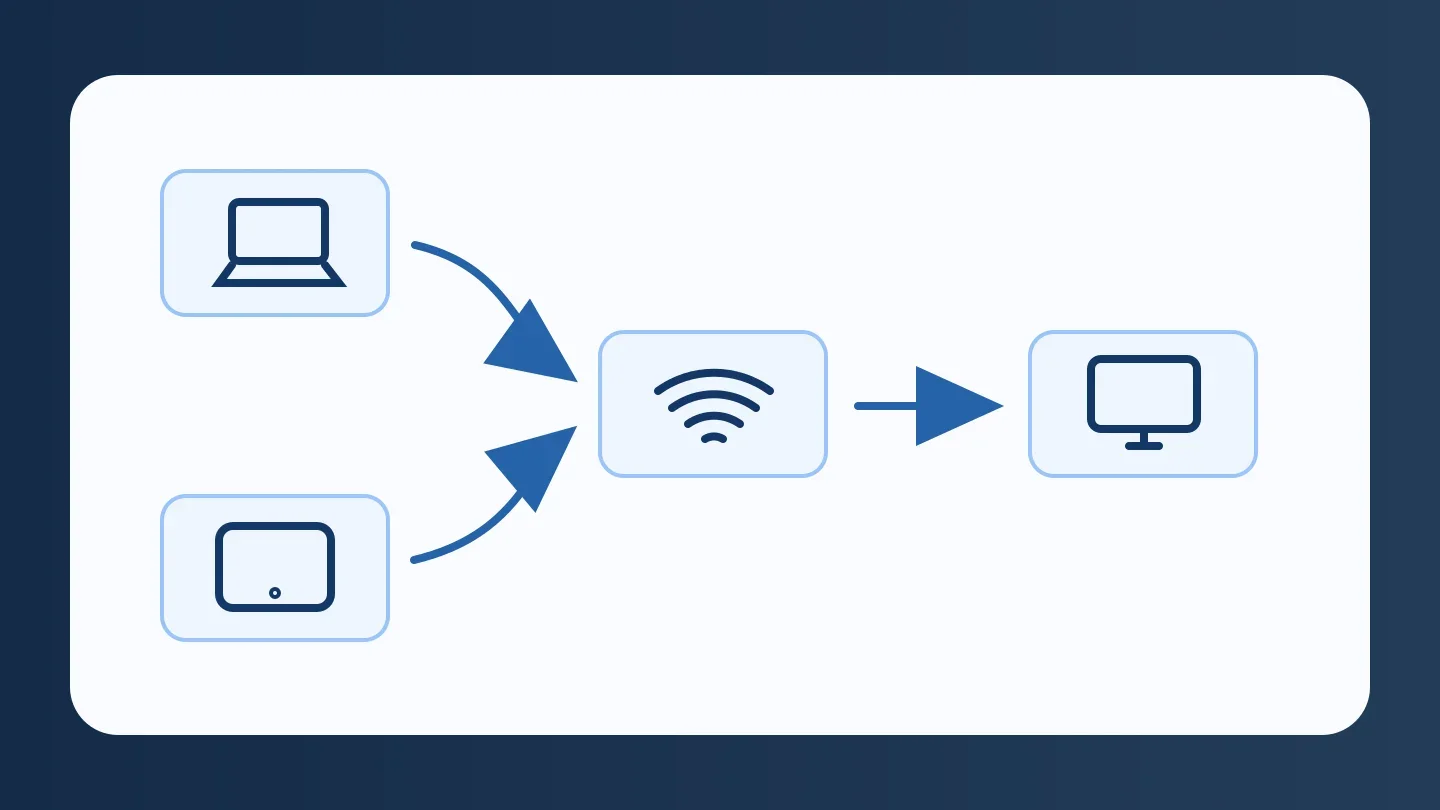
Distinguish three paths to the screen
With an infrastructure connection, the computer reaches a receiver on a network the organisation manages. The guest network can be separate from employee access and can restrict discovery or connections between devices. IT needs to know which receiver a guest should be able to use, how it appears and how access is restricted to the intended space. A test on one network and an installation on another is a common source of surprise. Include receiver model, sharing protocol, deployment mode and manufacturer instructions in the IT review.
Some products also support a direct link to their receiver or a dedicated accessory. Verify that the guest can still get to the Internet when a direct connection is in use. Use a sample with live web content as well as a slide deck stored on the computer. Products may use a physical accessory, a local application or a sharing feature built into the device. Each depends on different permissions, versions and receiver capabilities. See Barco network integration documentation for an example of differences across models.
The third path is a wired fallback. It can avoid a wireless discovery issue but still depends on a supported video output, the correct adapter and a working sound path. Where remote viewers are involved, check how the wired input gets into the meeting rather than assuming the room display will retransmit it. Write down the input name and physical button or control the visitor needs to find. A backup that depends on a remote control stored outside the room is unlikely to shorten recovery.
Test discovery, connection and presentation as separate events
Record whether the room name was visible, whether the presenter could authorise a connection and whether the picture actually appeared. A receiver can be listed even though a guest cannot start a stream on that network or with that device configuration. When a room name is absent, try a known working device and confirm the name displayed on the receiver. When the name appears but content does not, check the stage where the presenter enters a code, chooses an application window or grants permission.
Apple's AirPlay deployment information distinguishes several discovery methods and describes how a display code can affect connection. Microsoft's documentation for wireless projection over an existing network explains how compatible Windows devices can use a network for the stream. Review the documentation for the methods your actual devices will use. A tablet and a laptop do not necessarily locate or reach the same receiver by the same route.
Check who can see or take over a display session
Name receivers so the selected room matches a physical sign. From a neighbouring room or waiting area, check which destinations display in the device's list under the organisation's approved policy. If the room uses a visible code, have separate authorised users connect in succession and verify how the code changes. If the design includes host approval, document who accepts the presentation and what the guest sees while waiting.
Test a particular app window and the entire screen separately. While presenting a window, open harmless content outside of it and verify what the audience can see. For a session with audio, determine whether media sound or other system notifications are shared. Disconnect and ask a second person to connect. Confirm the first session ended and the standard waiting screen returned. Test putting the presenting computer to sleep as well, since presenters sometimes close the lid without stopping sharing.
Worked example of employees and visitors using the same room
In a demo room, employees use managed computers and visitors bring their own. Begin with the employee's normal connection, present a file and play a clip with sound. Have the visitor connect to the designated guest network without modifying device permissions. They identify the room by name, authorise sharing and show a window that depends on live Internet access. Verify that local viewers see the correct window and that video and sound remain continuous in representative room conditions.
Then a second user requests a connection while the first is presenting. The system might queue the second presenter, replace the picture or require a host decision. If the display supports multiple presentation windows, confirm the intended behaviour and check that it does not restore an earlier source. End the presentation from the appropriate control, then from the source device in a separate run. Verify that no previous content remains visible when the door opens for the next group.
Keep a checklist for users and another for IT
For each supported route, record device, operating system version, network, sharing action, discovery, approval, sound and the state at disconnect. Give presenters a few short steps and label the tested cable alternative. Keep network configuration and exact receiver model with the IT record. After a receiver replacement or an adjustment to guest access, repeat the checks with the managed and visitor scenarios before a customer demonstration or sensitive session. Wireless conference solutions and meeting room design cover related choices.
Test reliability during representative occupancy
Test while neighbouring rooms are in ordinary use. Include small text, slide transitions and a video with sound. If someone will walk around with a tablet, test the intended positions. A failure when a laptop wakes or a presenter moves is a different finding from a failure on every connection. Compare one approved variable at a time and note which settings and actions reproduced the problem.
Wireless presentation FAQ
Why do slides present clearly when a video does not?
A video with motion and sound is more demanding than a static slide. Try the same file on the source computer and defined presentation route. Record whether sound or picture is interrupted before changing networking hardware or other variables.
Do guests need access to the employee network?
Other routes can include explicitly permitted access from the guest network, a direct receiver accessory or a wired connection. Confirm supported behaviour for the actual product and have the responsible IT team approve the design.
What should be checked after moving a receiver?
Verify the display name shown to users, sharing from every intended network, media audio and a clean disconnect. Confirm that the replacement display's input and the room controls still support the wired backup.