



Knowledge that leads to a more precise choice.
Professional articles and guides from Goldtec for selecting equipment, planning spaces and making technology decisions.
128 knowledge items found
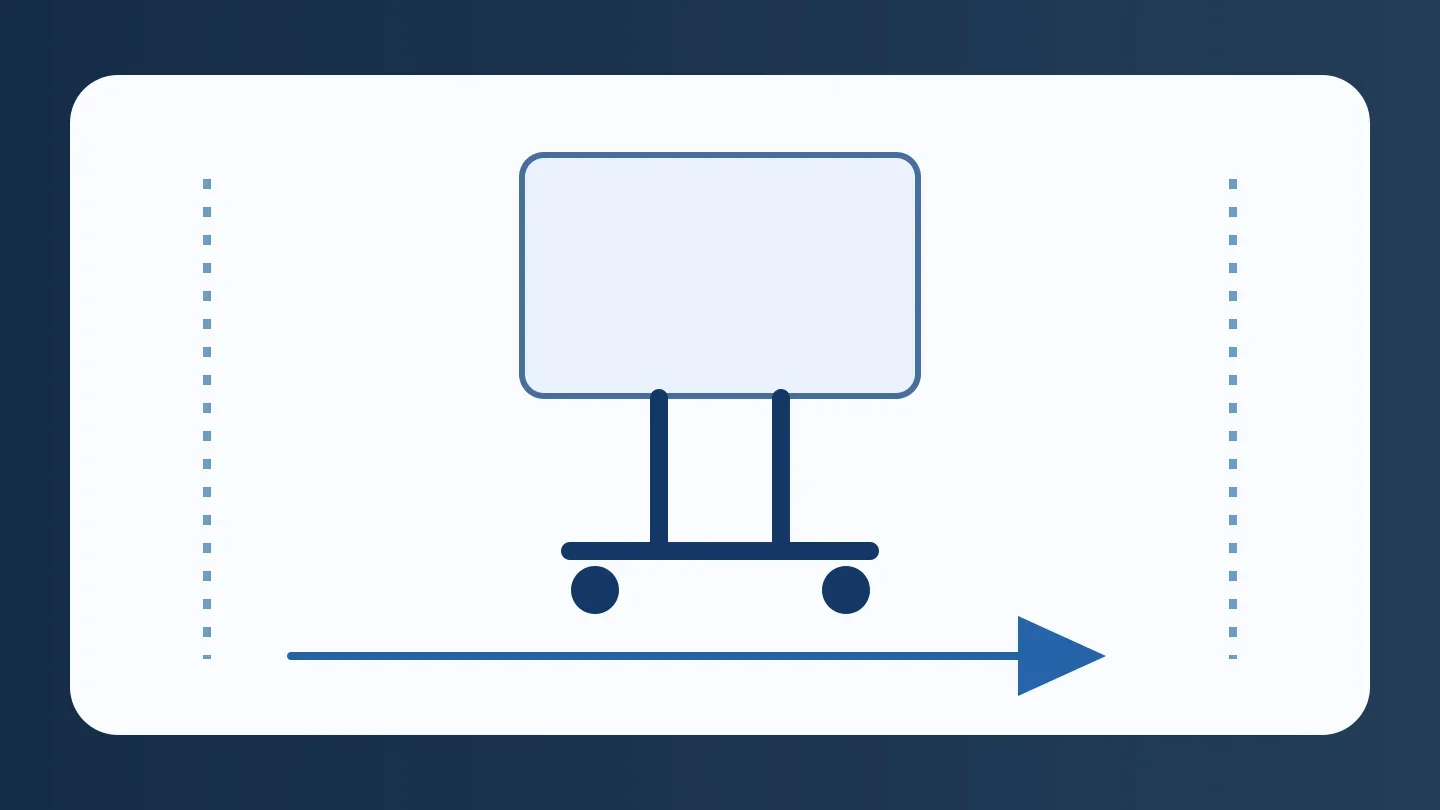
Mobile Stand for an Interactive Display - A Selection Checklist
Choose a mobile stand for the exact display model, combined equipment weight, mounting interface and travel route. Verify caster locks, operating height and cable handling against manufacturer instructions before purchase and use.
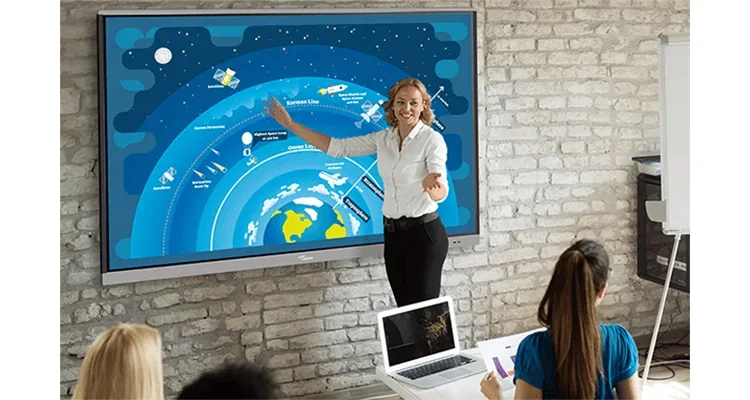
Choosing an Interactive Display Size - Readability, Distance and Reach
Choose the panel size around the smallest detail a distant viewer must read and the buttons a nearby user has to reach. Demonstrate real content at the rear seat and test touch controls with adults and students at the proposed mounting height.
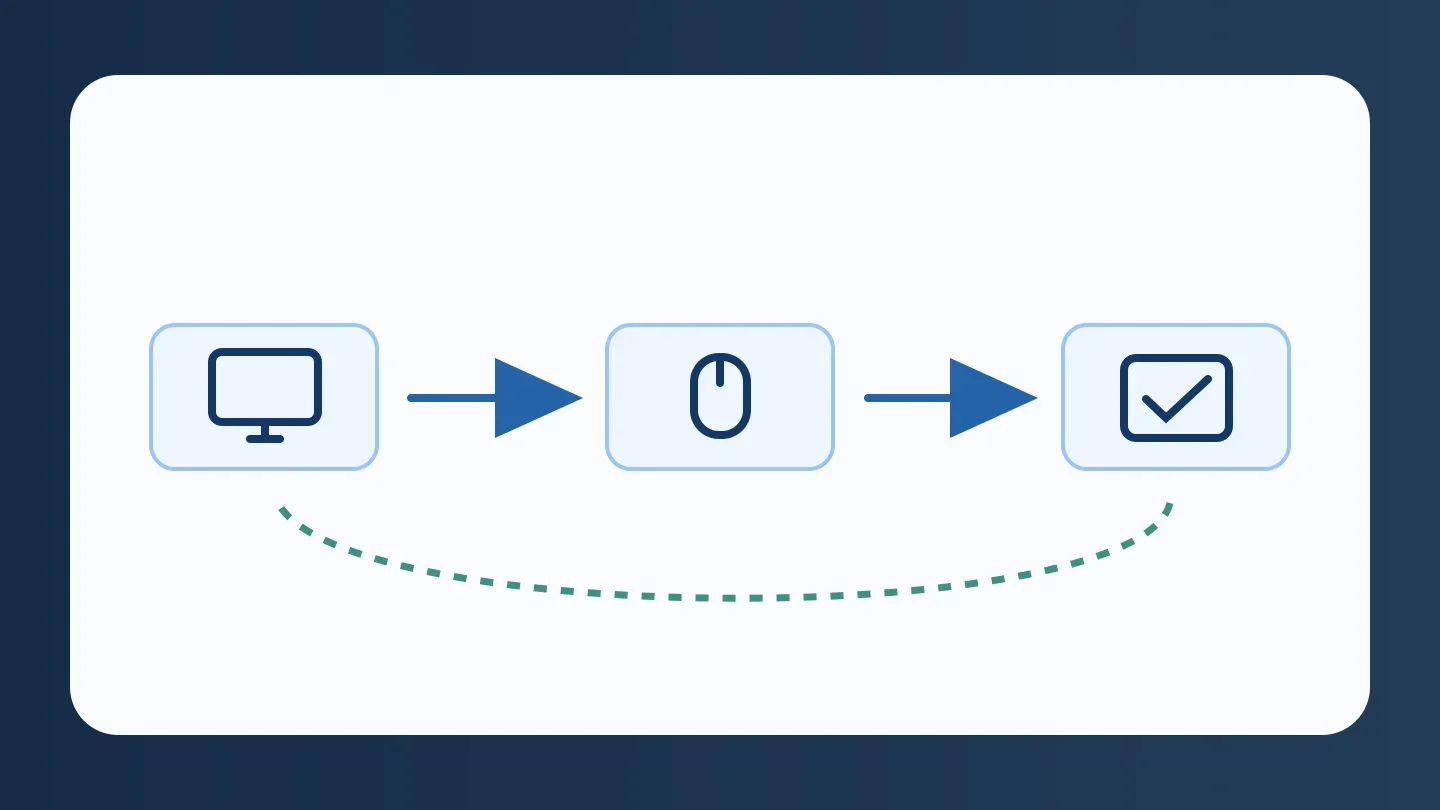
Planning an Interactive Museum Kiosk - Content, Access and Maintenance
A useful museum kiosk shows visitors what they can do, puts interaction within reach and returns to a welcome screen after use. Design the visitor's short journey and the staff maintenance routine before choosing the touch display.
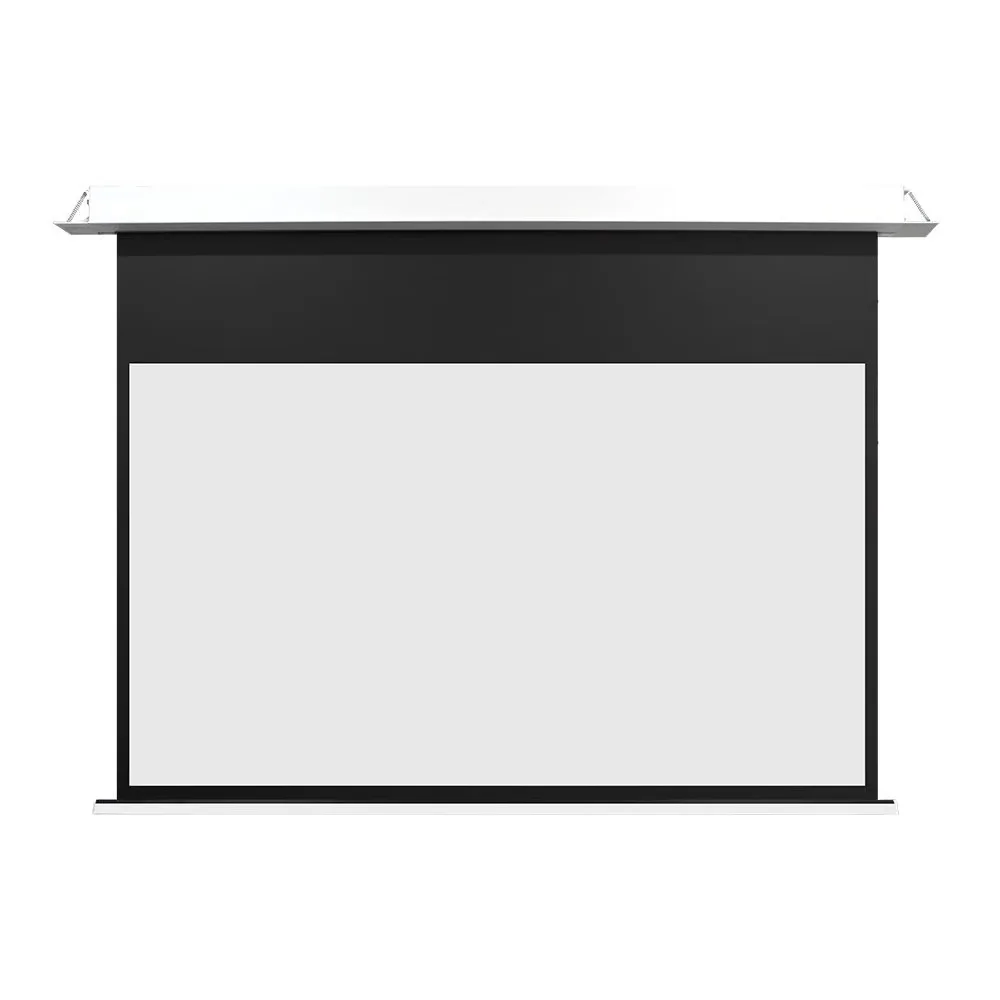
Recessed motorized projector screen: prepare before the ceiling closes
Plan the case length, rough opening, structural support, power, controls, fabric travel and service access for the exact recessed screen model. Mark the deployed screen plane and picture bottom height and coordinate the installer, electrician and ceiling trades before the finish is closed.
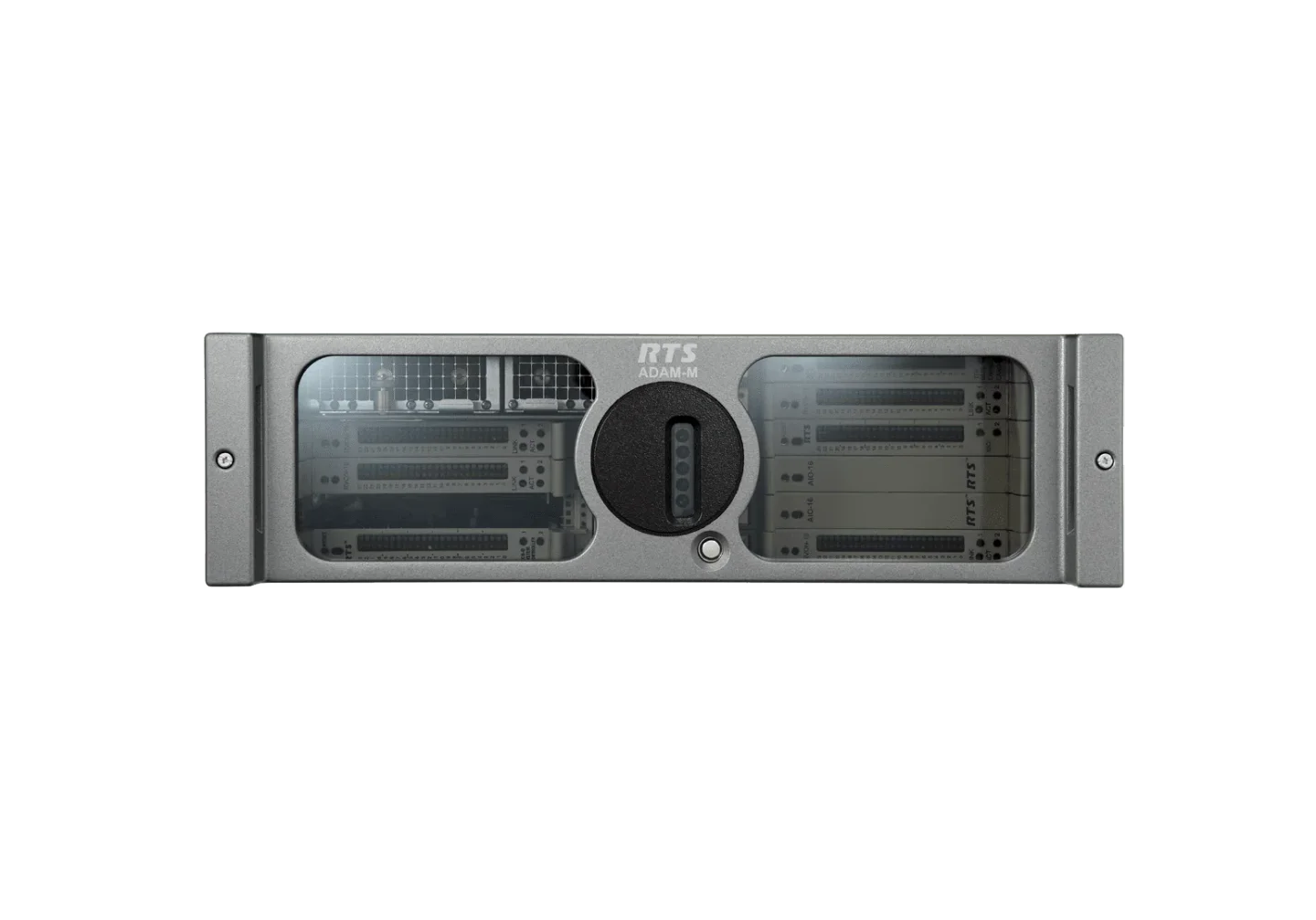
Planning a Broadcast Intercom Matrix by Production Role
Map who sends, listens and replies at each stage of the show. Assign group calls, point-to-point routes and programme feeds around those roles. Test the routing and a fallback position during rehearsal.
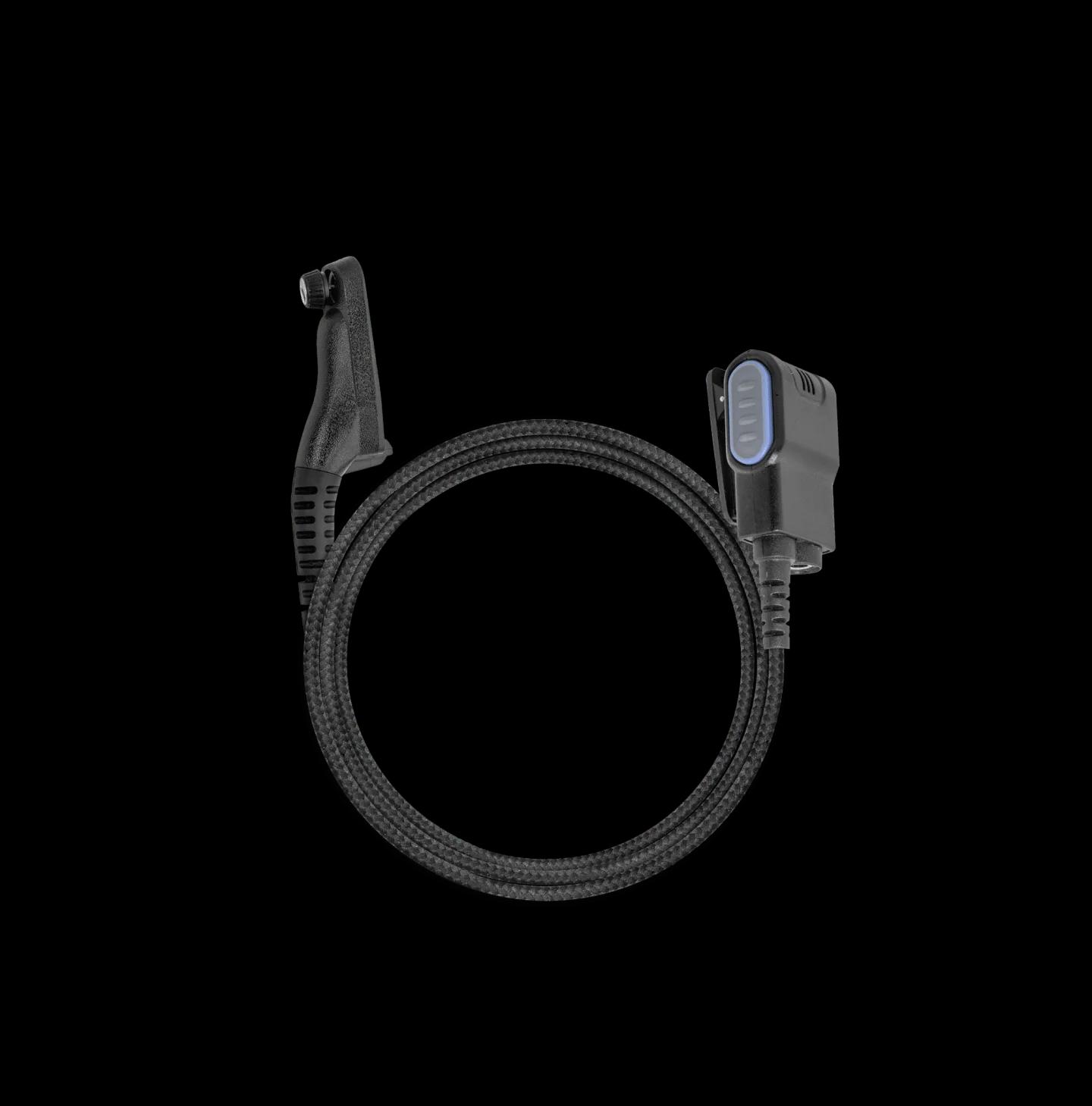
How to Match a Radio Earpiece and PTT Button
Check the exact radio model, PTT accessory connector and earpiece plug. Verify inbound audio, transmission and the active microphone separately, then test comfort and access with equipment worn on a normal shift.
Interactive Display Has a Picture but No Touch - HDMI and USB
HDMI sends picture and sound from the computer to the display. Touch usually returns through a separate USB connection associated with that video input. Compatible computers and displays may combine both functions through one USB-C cable.
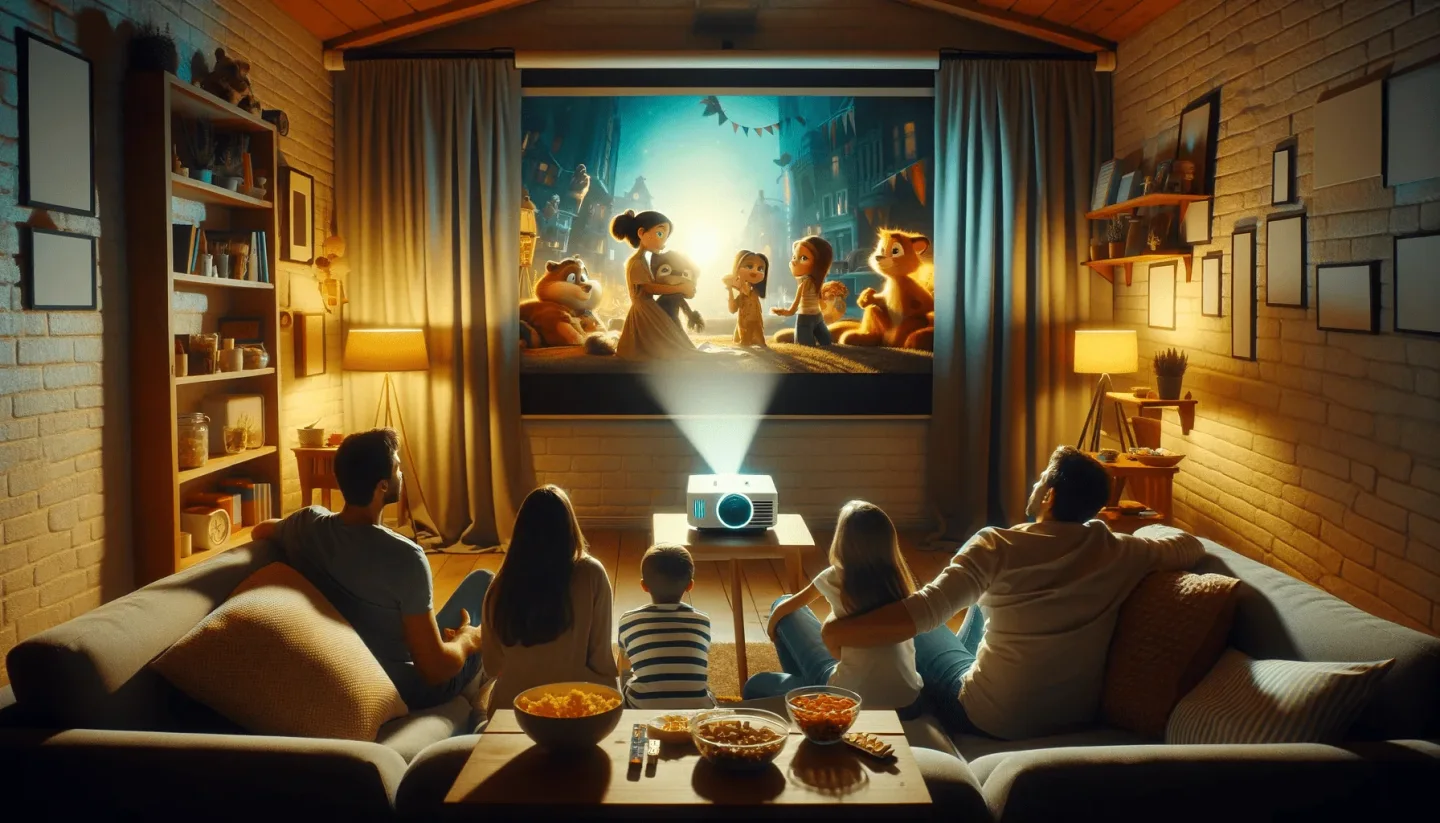
Set up HDR on a home cinema projector from source to screen
Verify that the intended HDR format arrives from the source through the receiver, then check the projector's signal status. Adjust tone mapping in your normal dark viewing conditions using two reference scenes: one with shadow detail and one with textured highlights.
Accessible Interactive Classroom Displays - Reach, Readability and Control
Check whether students and staff can read material, reach the controls and complete tasks without relying on direct touch alone. Plan routes, software layout and alternate inputs around the needs identified with the school and its users.
Sharing a Tablet to a Classroom Display - Network and Privacy
Choose a path that lets school staff decide what goes on the classroom display and stop it immediately. Verify the tablets, receiver and network together, and rehearse with example content containing no real student details.
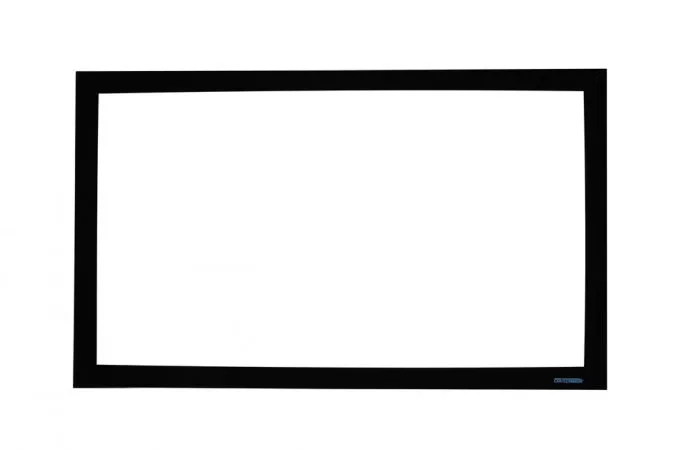
16:9 projector screen dimensions and audience sizing
A 100-inch 16:9 screen gives an active picture about 221 centimetres wide and 125 centimetres high. Choose a size by checking the smallest required detail from the farthest seat and viewing comfort at the nearest one. Add the selected model's frame and housing dimensions when planning the wall.
Hybrid Classroom Design - Audio, Video and Content for Real Lessons
A hybrid classroom should let remote learners hear the teacher and questions, read lesson material and take part at the right time. Define teaching workflows before choosing microphones, cameras, displays, software and controls.
